Neat Download Manager can increase speed by splitting a compatible file into segments and downloading several parts at the same time, but it cannot go faster than the source server, your network, and your bandwidth settings allow.
This guide explains the practical speed model behind NDM: dynamic segmentation, maximum connection count, bandwidth limits, pause and resume, and the cases where a download manager will not make a slow source faster.
NDM speed gains usually come from segmented transfers, not from bypassing the real network limit.
Download buttons use a 15-second countdown before opening the source.
Short Answer
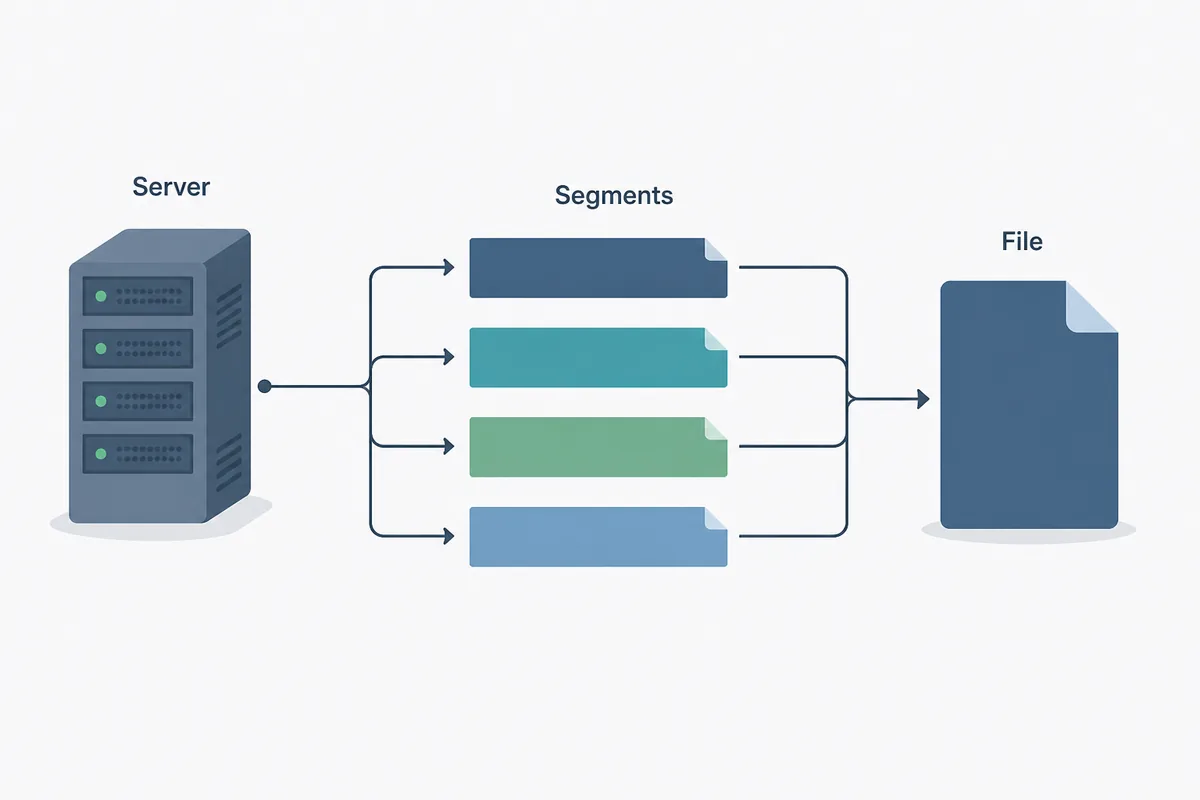
Neat Download Manager increases speed when the source file can be divided into multiple byte ranges or segments. Instead of waiting for one connection to transfer the whole file, NDM can request several parts in parallel, write them locally, and assemble the complete file when the parts finish.
That does not mean every download becomes faster. The real ceiling is still your available bandwidth, the remote server's rate limit, the number of connections the server accepts, local disk speed, antivirus scanning, and any bandwidth limit you set inside NDM. If a website throttles every connection or hides the file behind protected streaming, segmentation may add little or no benefit.
What Dynamic Segmentation Does
The official Neat Download Manager page describes an optimized dynamic segmentation algorithm and says downloads can use available bandwidth. In practical terms, segmentation lets the app keep more than one part of the same file moving at once. This helps most when a single browser connection is not fully using your internet line.
A simple example is a large ISO file from a server that supports ranged requests. The browser may use one steady connection. NDM can create several segments, so if one segment slows down, the others may continue. The final file should be the same file; the difference is the transfer path, not a change to the content.
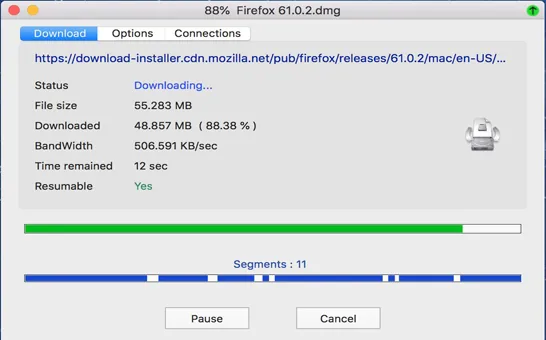
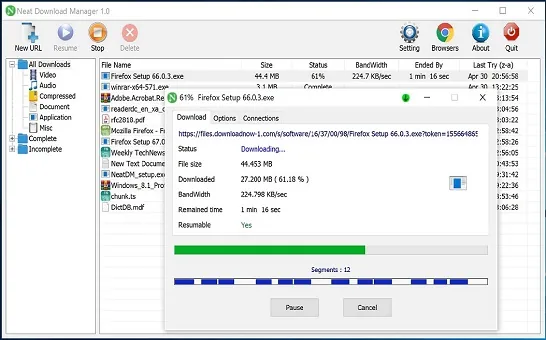
The segment bar in NDM shows several parts moving during one download.
When NDM Is Likely to Feel Faster
NDM is most useful for large direct files, update packages, archives, installers, and media files that expose a normal downloadable URL. These sources often support pause, resume, and range requests, so a download manager can manage multiple connections without fighting the website.
It can also help on unstable connections because pause and resume reduce the cost of a failed transfer. A browser may restart a large file after a crash, while NDM may renew or resume a compatible download. The speed benefit is therefore not only peak megabytes per second; it is also fewer restarts and less wasted time.
Large files benefit more than tiny files because connection setup overhead matters less.
Servers that allow ranged downloads give segmentation room to work.
Unstable connections benefit from pause, resume, and renewed expired downloads.
Browser extension capture helps only after the desktop app is installed and running.
When It Will Not Increase Speed
A download manager cannot bypass a slow server. If the source limits every user to a fixed total speed, more segments may simply divide that same limit. If your ISP, Wi-Fi, VPN, router, or corporate network is the bottleneck, NDM has no extra bandwidth to use.
Protected media is another common limit. Encrypted streams, login-only pages, expiring links, and sites that intentionally block external download managers may not expose a stable direct file. In that case the correct fix is usually source compatibility, account permission, or a different legal download method, not more connections.
Settings That Affect Download Speed
Two settings matter most for speed expectations: maximum connection number and bandwidth limit. Increasing connections can help when one connection underuses your line, but too many connections can overload a weak server, trigger throttling, or make your own network less stable. Bandwidth limits are useful when you want browsing or streaming to remain usable during a large download.
Use settings as a test, not as a magic number. Start moderate, compare the same file in the browser, then adjust one setting at a time. If speed does not improve after a few reasonable connection values, the bottleneck is probably outside NDM.
Factor
What it changes
Best action
Maximum connections
How many file parts can download in parallel
Raise gradually, then stop if speed or stability gets worse
Bandwidth limit
Caps NDM so other apps still have network room
Turn it off for testing, use it when multitasking
Server support
Decides whether range requests and resume can work
Test a known direct file before blaming NDM
Disk and antivirus
Can slow writing, scanning, and final merge
Check free space and avoid heavy disk load
A Practical Speed Test Workflow
The clean way to test how Neat Download Manager increases speed is to remove variables. Choose one large direct file from a reliable source, download it once in the browser, then download the same file in NDM with default settings. After that, change only the connection count or bandwidth limit and test again.
Do not start with a protected video page, a temporary link, a cloud-drive quota page, or a mirror full of ads. Those pages add permission and capture problems that have nothing to do with segmentation. A simple direct file gives you a fair baseline.
Use a repeatable direct-file test before judging NDM speed settings.
Open NDM and confirm no bandwidth limit is active.
Download one large direct file in your browser and note the approximate speed.
Download the same file in NDM and compare the stable middle of the transfer, not the first second.
Raise or lower maximum connections once, then retest the same source.
If the result is still slow, test a second source before reinstalling the app.
Connection Count: More Is Not Always Better
The phrase make Neat Downloader download faster often leads users to push the maximum connection number as high as possible. That can backfire. Some servers limit repeated connections from the same IP address. Some Wi-Fi networks become unstable when many connections compete at once. Some antivirus tools scan each part and slow the local write step.
A better rule is to look for the smallest setting that fills your available bandwidth without errors. If eight connections and sixteen connections produce the same speed, the higher value is not useful. If a site begins failing or resetting downloads, reduce connections and test another source.
Speed, HLS Segments, and Final Merging
HLS video downloads can look different from normal file downloads because the source is already made of many small segments. NDM may download those parts and then merge them into one playable file. The merge stage can take extra time and should not be confused with internet speed.
If the download stage is fast but the merge stage is slow, check disk space, output folder permission, file size, and antivirus activity. If the merge fails, the cause may be missing segments or protected media. The separate guide on why NDM merges after downloading covers that workflow in more detail.
Bottom Line
Neat Download Manager increases speed by managing compatible downloads more efficiently, especially through segmentation and multiple connections. It is strongest when the source server supports ranged downloads and your normal browser connection is not using the full line.
Use it with realistic expectations. NDM can organize, resume, segment, limit, and merge supported downloads, but it cannot create bandwidth that your network or the source server does not provide. For the best result, test one direct file, tune gradually, and treat video capture or encrypted media as a separate compatibility question.
Speed FAQ
NDM Speed FAQ
How does Neat Download Manager increase speed?
It can split a compatible file into segments and download several parts at the same time, then assemble the final file.
Does NDM always increase download speed?
No. Speed still depends on your internet connection, the source server, ranged-download support, and any bandwidth limit.
What setting should I change first?
Check that no bandwidth limit is active, then test maximum connection count gradually with the same direct file.
Why is NDM slower than my browser on some files?
The server may throttle multiple connections, the file may not support ranged requests, or local disk and antivirus scanning may be the bottleneck.
Is speed related to the browser extension?
The extension mainly passes compatible links to the desktop app. The speed work happens in the NDM desktop app.
Can NDM speed up encrypted media?
Usually no. Protected or encrypted streams may block direct download manager access even if the extension detects a page.
Sources checked
Version and Feature Sources
Official Neat Download Manager website - Checked July 22, 2026 for Windows 1.4, macOS 1.3, dynamic segmentation, bandwidth limit, connection limit, and HLS merge statements.