Neat Download Manager Port 10007 Occupied: Fix the Browser Connection
A Neat Download Manager port 10007 occupied message usually points to a local handoff problem between the browser extension and the desktop app. It does not, by itself, prove that the installer is damaged or that the download source is blocked.
Use this guide to identify the process using the port, restart the handoff in a controlled order, check Windows or macOS permissions, and decide when the existing extension or errors guide is the better next step. The port wording is a troubleshooting clue, not a claim that the official site publishes a fixed port specification.
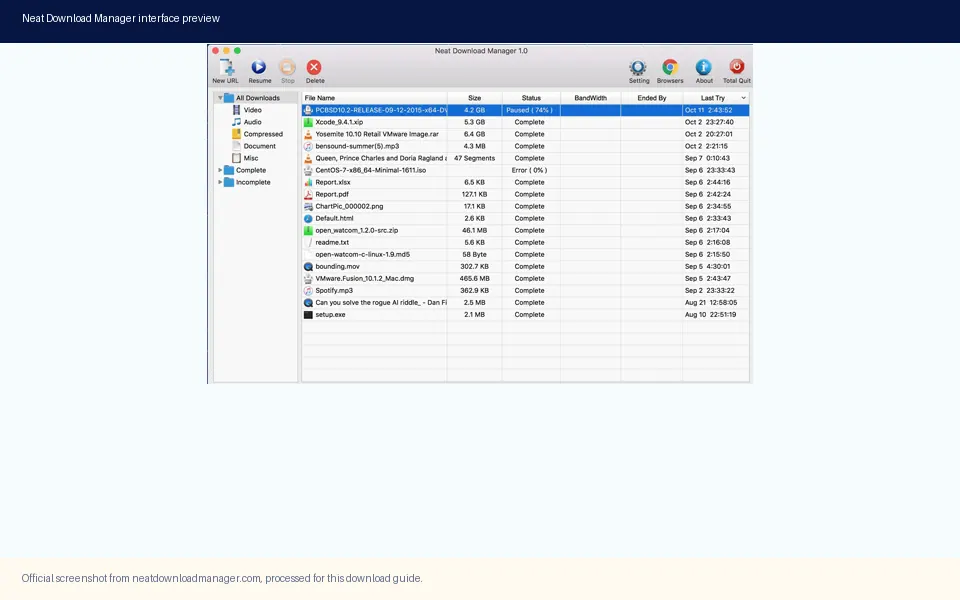
Official product screenshot. Test the desktop application itself before treating a browser handoff or local port message as an installer failure.
Official NDM page and installer responses checked on November 7, 2026; Windows 1.4 and macOS 1.3 remain the verified site labels.
Quick Answer: What Does Port 10007 Occupied Mean?
If Neat Download Manager reports that port 10007 is occupied, start by treating it as a local communication conflict. A browser extension may need to reach a desktop helper, but another process can already be listening on that local port, the helper can be stuck, or a security rule can block the connection. The message is about the path between two programs on your computer; it is not the same as HTTP 400, HTTP 403, an expired URL, or a protected video stream.
Close the browser, quit NDM completely, and wait a few seconds before opening the desktop app again. Then test one ordinary direct file that you are allowed to download. If the task works when you paste the URL into NDM, the desktop app and network path are probably usable and the remaining issue is browser handoff. If a direct task also fails, collect the exact NDM error before changing settings.
The official NDM site confirms the product is a desktop download manager for Windows and macOS, but the checked product page does not publish a public port 10007 specification. This guide therefore uses the port text as user-facing evidence and keeps the remedy reversible: identify the process, restart the correct component, and avoid deleting unknown files or disabling security controls blindly.
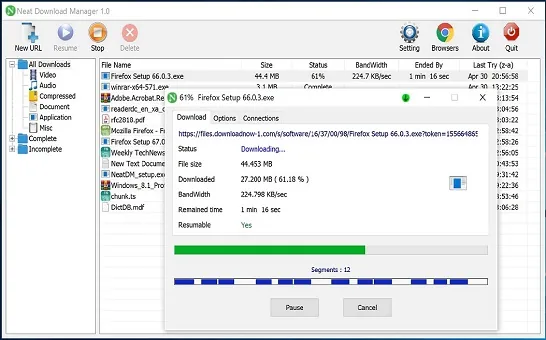
Official product media. A normal active task gives you a clean comparison before testing the browser extension again.
Close the browser before restarting the desktop app.
Use a stable direct file for the first test, not a streaming page.
Write down the full message and the time it appeared.
Do not kill an unknown process only because its name looks unfamiliar.
Keep the official installer source available, but do not reinstall as the first move.
What a Local Port Conflict Can and Cannot Tell You
A local port is a numbered endpoint that programs use to exchange data on the same computer. When two programs try to claim the same endpoint, the second listener may fail. A stale NDM helper, an older browser handoff process, a security scanner, or an unrelated development service can all produce a symptom that looks like a Neat Download Manager port conflict. The message alone does not tell you which process is responsible.
Separate four questions during diagnosis. Is the NDM desktop process running? Is a local process listening on the reported endpoint? Can the browser extension reach the desktop process? Does the download URL itself work when added manually? Each question has a different check. Changing connection counts or retrying a protected video will not answer the first three questions.
A useful boundary is the direct-file comparison. Use a small public file from a source you are allowed to access. Add its URL directly in NDM, observe whether a task appears, and check that the destination is writable. Next, open the same file in the browser and test the extension. The comparison prevents a browser handoff error from being mistaken for a broken download engine.
Observation
What it suggests
Next safe check
Direct URL works in NDM
Desktop app and source path are usable
Restart the browser and check the extension handoff
Only browser capture fails
Extension, helper, permission, or local listener issue
Check the browser extension guide and local process
Both direct and browser tests fail
App, network, source, or permission issue
Copy the exact NDM message and test another permitted file
A different process owns the endpoint
Port collision is plausible
Identify the owner before stopping anything
A protected page fails but a direct file works
Source policy or temporary URL boundary
Use the source's permitted download path
Windows: Find the Process Before Changing Anything
On Windows, use the built-in command line or Resource Monitor to see whether something is listening on the reported port. Open a normal Command Prompt or PowerShell window and run a read-only check such as `netstat -ano | findstr :10007`. The final number is a process ID. It is evidence to investigate, not a command to terminate automatically. If no line appears, the problem may be a stale message, a helper that exits quickly, or a different endpoint reported by the current build.
Check the process ID in Task Manager or with `Get-Process -Id <PID>`. Look at the executable path and publisher. If it is NDM or a browser helper, close the owning application normally and reopen it. If it belongs to another tool you need, do not stop it just to make the extension work; choose a different local configuration only when the product documents one, or keep using the manual URL workflow.
Windows Defender Firewall can also affect local communication. A firewall prompt should identify the application and publisher. Allow only the trusted NDM or browser component you installed from a verified source, and keep the network profile appropriate to your environment. Do not disable the entire firewall, replace a signed installer with a random download, or add a broad inbound rule for an unknown executable.
Quit Chrome, Firefox, Edge, and NDM from their menus; check the tray area for a remaining helper.
Run a read-only `netstat -ano | findstr :10007` check in a normal terminal.
Record the process ID, executable name, and publisher before taking action.
Close the owning application normally, then reopen NDM before reopening the browser.
Test one direct file in NDM and one browser-captured file separately.
Review a specific Windows Firewall prompt instead of disabling protection globally.
macOS: Quit the Helper and Check the Permission Boundary
On macOS, quit NDM from its menu and close the browser before testing again. If the application appears closed but a helper remains, use Activity Monitor to inspect the process name and its signed developer information. Avoid force-quitting an unrelated service simply because it has a similar name. The goal is to make the next test repeatable, not to clear every process from the machine.
A local connection can also be affected by macOS privacy and network prompts. Read the prompt, confirm that the application came from the source you intended, and grant only the access needed for the workflow. If the direct URL works when entered into NDM but browser capture fails, keep the desktop app as the baseline and focus on the extension or helper. If both fail, test a small file in a user-owned folder and record the exact message.
Do not remove files from Library folders just because their names contain NDM. Preferences, logs, resume records, and temporary segments serve different purposes. Back up anything needed for an active task, close the application, and use the existing uninstall guide only when a clean removal is actually required.
Quit NDM and the browser from their application menus.
Use Activity Monitor to inspect a remaining NDM or browser helper.
Check the developer identity and application path before force-quitting.
Reopen NDM, add a permitted direct file, and confirm the destination is writable.
Reopen the browser and test the extension only after the direct task succeeds.
Keep Library preferences and active download data until the workflow is verified.
Browser Extension, Socket Error, and Port Conflict Are Different Layers
The phrase `Neat Download Manager extension not working` describes a browser-to-desktop handoff symptom. A socket error describes a connection that was interrupted while data was moving. A port 10007 occupied message describes a local endpoint collision or listener problem. These can appear together, but they should not be repaired with one generic reinstall. The extension guide is the right place to check browser permissions, while the errors guide is the right place to classify 403, encoding, Reddit, and socket messages.
Use the browser developer tools only as a confirmation aid, not as a reason to copy private cookies or bypass a site's access controls. A public direct file should remain the first test. If the extension sends that file to NDM after a clean restart, the handoff is functioning. If it does not, compare the extension version, browser permissions, desktop process state, and any local port owner one at a time.
A source page that plays media is not necessarily a file URL. Protected streams, short-lived signed links, login-only resources, and adaptive playlists can fail after the local port is fixed. When the direct-file test works but one site still fails, follow the site's permitted download workflow and use the YouTube or errors guide for source compatibility rather than changing local networking settings repeatedly.
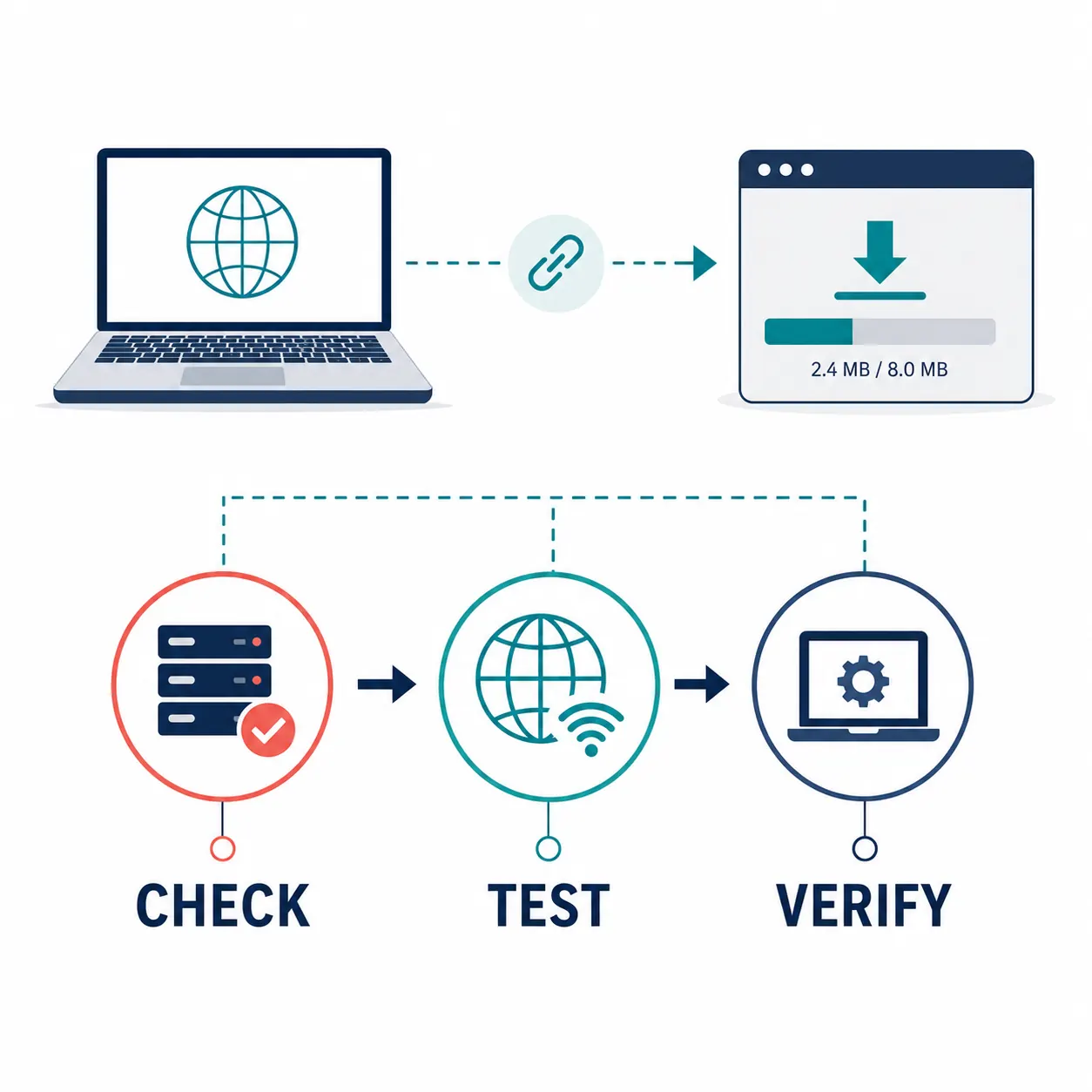
Existing explanatory diagram, not a screenshot of the NDM interface. Use it to route the symptom to the right troubleshooting layer.
Decision Table: Choose the Smallest Reversible Fix
The table below turns the port message into a short decision tree. Start with the smallest action that can produce new evidence. A normal restart is reversible. Identifying a process is read-only. Removing an extension or reinstalling the app changes state and should come later, after the direct-file comparison is recorded.
Keep the source policy in view. A port conflict does not authorize bypassing a login, defeating encryption, scraping a protected stream, or downloading material you do not have permission to save. It only tells you to inspect the local bridge between the browser and the desktop application.
Result
Interpretation
Recommended action
No listener and direct task works
The old message may be stale or tied to the extension
Restart the browser and re-enable the matching extension
NDM owns the port but capture fails
The helper or browser permission may be stuck
Quit both apps normally, then test the extension again
Another trusted app owns the port
A local collision is plausible
Keep that app running if needed and use manual URL entry or documented settings
Unknown executable owns the port
The process needs identification
Check publisher and path; do not run or kill it blindly
Direct task fails too
The problem is broader than browser handoff
Use the errors, HTTP 400, or source-specific guide
Only one site fails
The URL or site policy is likely the boundary
Refresh the permitted URL and compare in a browser
When Reinstalling NDM Is Justified
Reinstall only after the desktop app cannot create a task from a known direct file, the process and permission checks are clear, and the official source is still the intended installer path. Before removal, finish or preserve active downloads, record the destination folder, and note any non-secret settings you may need to recreate. A clean uninstall is a separate workflow from solving a single local port conflict.
The official page and installer responses checked on November 7, 2026 were reachable. The Windows installer returned HTTP 200 with `application/octet-stream` and a 917,340-byte response; the Mac installer was also reachable. Those checks support using the official source, but they do not prove that every mirror or third-party package is safe. Do not invent a newer version number or replace the official path with a download portal.
After reinstalling, open NDM before installing or enabling the browser extension. Run the direct-file baseline first, then test browser capture, then test the site or media type that originally failed. If the same port message returns immediately, stop repeating the install and inspect the listener and browser handoff again.
Protect active downloads and write down the destination folder.
Use the official NDM page and verified installer path.
Install the desktop app before the browser extension.
Run the direct-file baseline before testing a complex site.
Keep the exact error text if the port message returns.
A Short Checklist Before You Leave the Port Guide
A successful repair has a visible result: NDM opens, a direct file becomes a task, the destination is correct, and the browser extension can hand off a second permitted file without the port message. If only the direct task succeeds, the local download engine is a useful baseline and the next step is extension configuration. If neither test succeeds, classify the full NDM error and move to the matching guide rather than guessing.
Keep this page as a local troubleshooting reference, not a promise that every browser or website can be captured. Similarweb surfaced the port phrase as a low-difficulty long-tail query, while the broader extension and socket terms map to existing pages. That boundary keeps the new page useful without duplicating the site's general error, extension, or video guides.
The desktop app opens without a second copy running.
A known direct file works in NDM.
The process owning port 10007 is identified or no longer listening.
The browser extension is enabled for the current browser.
A second permitted browser-captured file reaches NDM.
The original source URL is still valid and allowed to download.
Port conflict FAQ
Neat Download Manager Port 10007 FAQ
Is port 10007 officially documented by Neat Download Manager?
The official page checked for this guide confirms the Windows and macOS desktop product but does not publish a public port 10007 specification. Treat the message as local troubleshooting evidence and verify the process and handoff before changing system settings.
How do I check whether port 10007 is occupied on Windows?
Run the read-only command `netstat -ano | findstr :10007`, record the process ID, and identify the executable and publisher in Task Manager or PowerShell. Do not terminate an unknown process automatically.
What if a direct URL works but the browser extension does not?
The desktop app and source path are probably usable. Restart the browser and NDM, check the matching extension and permissions, then follow the extension-not-working guide. Keep testing with a permitted direct file.
Can a port conflict cause a Neat Download Manager socket error?
It can be part of the local handoff story, but a socket error can also mean a network or source connection was interrupted. Copy the full message and compare a direct file with the browser-captured link before assuming one cause.
Should I disable Windows Firewall to fix port 10007?
No. Review the specific application and publisher in a firewall prompt and allow only a trusted component when your environment requires it. Disabling the entire firewall removes useful protection and does not identify the process using the port.
Will changing the port fix a protected video or expired URL?
No. A local port check cannot make an expired, login-only, encrypted, or otherwise incompatible source into a stable direct file. Use the source's permitted workflow and the site's compatibility guide.
When should I reinstall Neat Download Manager?
Reinstall only after the app fails a known direct-file test, the local process and permission checks are clear, active downloads are protected, and the official installer source has been verified. Reinstalling is not the first response to a single browser handoff message.
What is the safest first test after fixing the conflict?
Open NDM, add a small permitted direct file, confirm the task and destination, and let it complete. Reopen the browser and test the extension only after that baseline succeeds.