Neat Download Manager Update: How to Check Version and Install Safely
The safest Neat Download Manager update starts with a version check and the official product page. As of October 18, 2026, the checked source listed Windows ver 1.4 and macOS ver 1.3, but it did not publish a stable release date or promise an automatic updater.
Use this guide to decide whether you need an update, choose the correct installer, protect active downloads, and separate a real update problem from a mirror, extension, or server error.
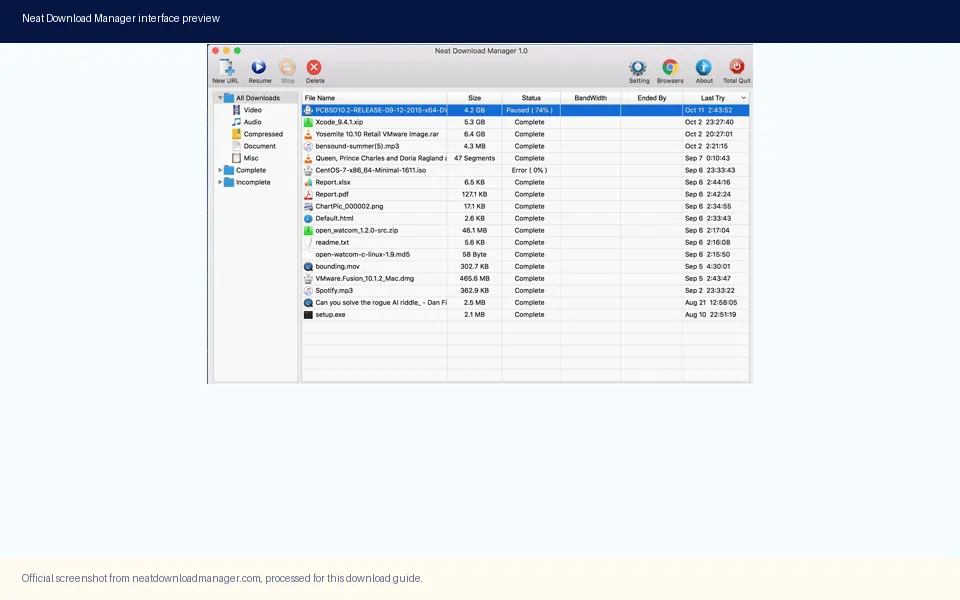
Official product screenshot. Check the installed build first, then compare it with the dated facts on the official source.
Official source and installer facts checked October 18, 2026; recheck the source before a future install.
Quick Answer: How Do You Update Neat Download Manager?
To update Neat Download Manager, first open the installed app and record its version from the About or application information area if your build exposes one. Then open the official Neat Download Manager website, compare the platform and version facts, download the installer from that source, close NDM, and run the matching Windows setup or macOS DMG. Reopen the app and check the version again before deleting the old installer or any paused task data.
The official page checked on October 18, 2026 showed Windows ver 1.4 and macOS ver 1.3. The page did not publish a reliable release date, so this guide uses a checked-on date instead of calling either file permanently latest. A later source change should be treated as new evidence. Do not replace a dated fact with a number copied from a mirror, portable package, forum post, or APK listing.
There is also no verified universal automatic-update contract in the source material reviewed here. The practical workflow is therefore source-first: compare the installed build, use the official product page, install the correct platform package, and test one permitted direct file. If the update does not appear, classify the issue before reinstalling or changing browser-extension settings.
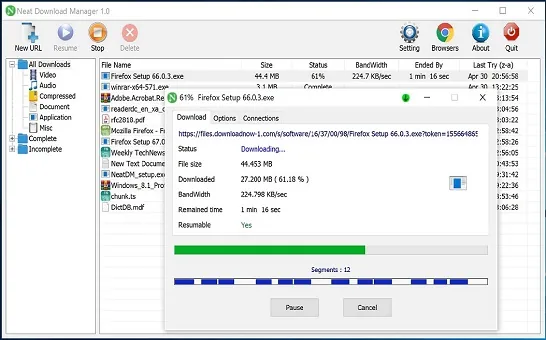
Official product screenshot. Finish or pause important tasks deliberately before closing the app for an update.
Does Neat Download Manager Have an Automatic Updater?
Searchers often use the phrase how to download update for Neat Download Manager as if the app must contain a one-click updater. The checked first-party page gives platform downloads and feature information, but it does not document a version-independent automatic-update service. Treat an in-app notice as a prompt to visit the official source, not as permission to accept an unknown executable or a third-party download manager bundle.
An update notice can also be stale. A browser extension may be current while the desktop app is older, or a mirror may label a repack as a newer version without proving its publisher. Keep the desktop application, browser extension, installer name, and source domain as separate facts. The extension handoff cannot update the desktop binary by itself.
If the official page does not show a newer verified package, do not force an update by renaming files, copying another app's portable folder, or installing an Android APK. A safe answer can be that no newer verified file was found on the check date. That is more useful than an invented latest label.
Use an update notification as a reason to check the official product page.
Do not treat a browser extension update as a desktop application update.
Do not run a mirror, crack, portable bundle, or APK just because it has a higher number.
Record the checked date when a release date is not published.
Verified Neat Download Manager Version Facts
Version facts are useful only when they stay attached to a source, platform, and date. The table below records the official page and final installer responses checked for this guide. Windows returned a stable Content-Length header. The macOS response returned the same byte count when downloaded, even though its HEAD response did not expose Content-Length. These checks confirm availability and identity signals; they are not a malware scan or a promise that a future file will be identical.
The official page lists Windows 7 or higher and macOS 10.10 or higher in the checked product context. If your operating system is newer or managed by an organization, follow its security prompts and compatibility policy. A version mismatch should lead back to the first-party page, not to a random download mirror.
Platform
Checked version and file
Response evidence
Update decision
Windows
ver 1.4; NeatDM_setup.exe
HTTP 200; application/octet-stream; 917,340 bytes
Use the official page and recheck before a later install.
Use the official page; the release date was not published.
Linux
No official Linux installer verified
The official desktop page did not list a Linux package
Use the Linux availability guide instead of a repack.
Android
No official Android APK verified
No first-party Android package was confirmed
Use the Android guide and avoid lookalike APKs.
Release date
Not published beside these labels
Checked-on date: October 18, 2026
Do not claim permanently latest.
A Safe Neat Download Manager Update Workflow
A controlled update is easier to reverse than a rushed replacement. Use a direct file you are allowed to download for the post-update test, keep the existing app and task state until the new build opens, and change one variable at a time. If a task is actively transferring, decide whether to let it finish or pause it through NDM's own controls before closing the application. Do not move hidden segment files by hand.
The steps below work for the common Windows setup and macOS DMG paths. They do not assume a particular installer wizard label, because labels can change between builds. The important checks are source, platform, process state, version, and a small permitted download after the update.
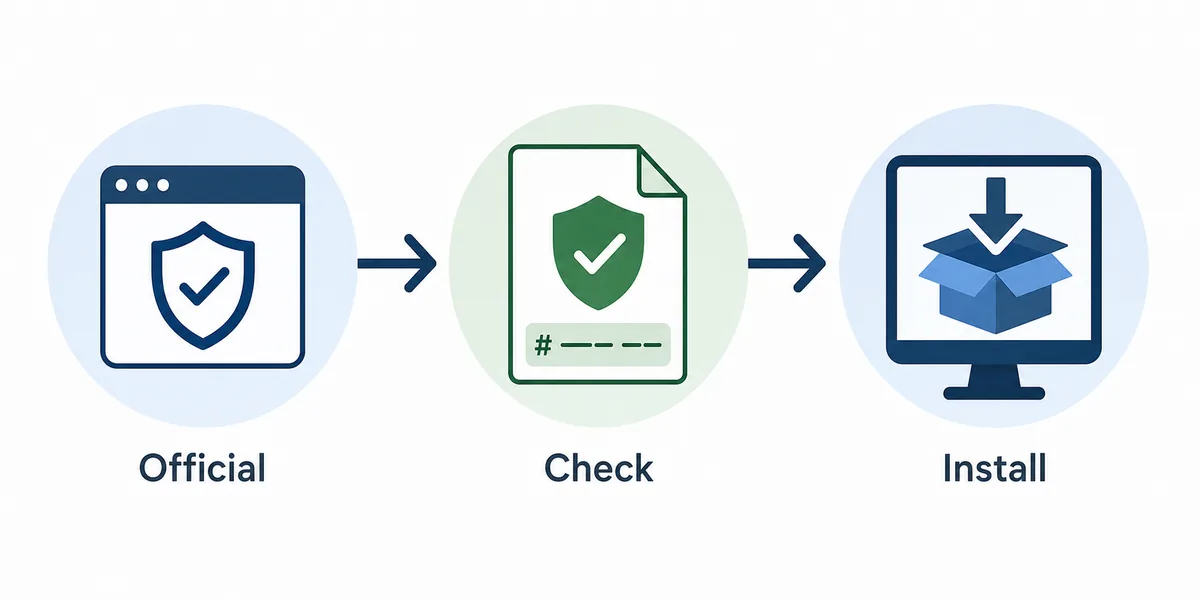
AI-generated editorial diagram, not an official NDM screenshot. The sequence keeps version, source, installer, and post-update test as separate checks.
Open NDM and write down the installed version, active task state, destination folder, and browser extension status.
Finish or pause important tasks inside NDM. Keep unfinished task data in place and leave enough disk space for a new installer and merge output.
Open the official product page in a fresh browser tab. Match Windows with NeatDM_setup.exe or macOS with NeatDMInstaller.dmg.
Compare the source page, file name, platform, version label, final URL, MIME type, and verified byte count. Do not use a mirror when the official path is available.
Close NDM and run the matching installer using the operating system's normal security review. Avoid changing unrelated browser or network settings during this test.
Reopen NDM, check the version and task list, then test one small direct file that you are permitted to download.
Only after the app and test file behave normally should you resume a larger queue or reconnect browser capture.
Windows and macOS Update Choices
Windows and macOS share the same source-check principle, but the package and operating-system prompts differ. Use the table as a quick routing aid, then follow the platform-specific download page for the current installer link. The platform pages are the right place for download intent; this update guide adds the version comparison, preservation steps, and post-update test.
If the official page changes its file name, version, or platform requirement, record the new evidence before editing a page or calling the package latest. A direct installer URL is preferred only when its final response is verified. Otherwise the official product page remains the safer fallback.
Situation
Windows
macOS
Correct package
NeatDM_setup.exe
NeatDMInstaller.dmg
Checked platform fact
Windows 7 or higher
macOS 10.10 or higher
Before closing NDM
Pause or finish active tasks
Pause or finish active tasks
After install
Open the app and test one direct file
Open the app and test one direct file
If the page changes
Use the dated source page, not a mirror number
Use the dated source page, not a mirror number
When a Neat Download Manager Update Does Not Appear
An update may appear missing for several different reasons. The installed app may already match the source label, the installer may have been run while NDM was open, the operating system may have blocked a package, or the user may be checking the browser extension instead of the desktop binary. Start by comparing the version and file name again. Do not infer failure from a changed icon, a stale shortcut, or a browser handoff that stopped working.
If the installer opens but the version remains unchanged, close every NDM process, confirm that the installer completed, and check whether the shortcut points to an older copy. If the official file cannot be reached, test the product page in a browser and record the exact HTTP or security message. A 403, expired redirect, or unsupported content-encoding is a source or response problem covered by the errors guide, not proof that a new version should come from an unverified mirror.
If the app opens but a browser link is not captured, use the extension troubleshooting page. If a task is stuck in merge or the destination is wrong, keep the update decision separate from the task or folder problem. Updating repeatedly can erase useful evidence without fixing the original layer.
Compare the installed version with the official platform package again.
Close all NDM processes before rerunning an installer.
Check the shortcut or application path when more than one copy is installed.
Use the errors guide for 403, encoding, socket, and source-response failures.
Use the extension guide when the desktop app works but browser capture does not.
Protect Settings, Queues, and Browser Extensions
A normal installer should not require you to delete task data just to update the application. Before changing folders or removing an old copy, record the destination and decide what to do with active tasks. NDM may keep segment and task state outside the visible final file. Moving or renaming those working files can turn a recoverable pause into a corrupted or untraceable task.
The same boundary applies to browser extensions. A Chrome, Firefox, or Edge extension hands a compatible link to the desktop application; it does not install or update the desktop binary. After an update, test the desktop app with a manual direct file before testing browser capture. This order tells you whether the update succeeded before introducing browser permissions, site access, login sessions, or temporary media links.
If the update changes behavior, write down the old and new version, source URL, file name, platform, and first failing URL. That small record is more useful than a generic reinstall loop and makes it possible to return to the official source or ask for help without claiming that every download site is affected.
Keep active segments in NDM's own task workflow until the result is verified.
Do not copy hidden task files into another download manager's data folder.
Test a manual direct file before reconnecting Chrome, Firefox, or Edge capture.
Record old/new version and the first failing URL if behavior changes.
How to Reject Unsafe Update Claims
A page that says latest, full, portable, or APK is making a claim about package identity and time. Check whether the official Neat Download Manager website links to that source, whether the file name matches the platform, and whether the release history is traceable. A higher version number is not enough. Community builds, translations, repacks, and renamed installers can all use the NDM name without belonging to the official distribution path.
Use the official product page for Windows and macOS when the goal is to update the desktop app. Use the browser store listing for a supported extension. Use the Android and portable guides for those separate platform questions. If no newer verified file is available, keep the official page as the fallback and say that the checked source did not publish a newer release date or package.
HTTP 200 and a matching file size show that a source responded with a file. They do not replace an antivirus scan, code audit, or publisher signature. This guide records source and byte facts so a future check can be repeated; it does not label an installer malware-free.
Signal
What it supports
What it does not prove
Official page links to the installer
The source path is first-party
Every future file will be unchanged
Final URL and MIME match the package
The response looks like the expected installer
The file passed a malware scan
Version label is dated
The fact can be rechecked
The number is permanently latest
Mirror uses a higher version
Only that the mirror makes a claim
Official ownership or support
Portable or APK package exists
A third-party package is available
It is an official NDM build
Summary: Update from the Source, Then Test One File
A reliable Neat Download Manager update is a short chain of evidence: check the installed version, open the official source, match the platform package, protect active tasks, install normally, and test one permitted direct file. On October 18, 2026, the verified snapshot was Windows ver 1.4 and macOS ver 1.3, with no published release date and no newer verified file found during the check.
Keep the conclusion narrow. The source facts do not prove a universal automatic updater, a permanent latest version, or a safe mirror. When an update does not appear, separate the desktop binary from the browser extension, source response, destination folder, and task merge state. That gives you a repeatable next step and keeps the download path tied to a verifiable official page.
Update FAQ
Neat Download Manager Update FAQ
How do I download an update for Neat Download Manager?
Check the installed version, open the official Neat Download Manager website, choose the matching Windows or macOS package, close NDM, run the installer, and test one permitted direct file after reopening the app.
What is the latest Neat Download Manager version?
The official source checked on October 18, 2026 showed Windows ver 1.4 and macOS ver 1.3. It did not publish a stable release date, so this page records a dated verification snapshot rather than a permanent latest claim.
Does Neat Download Manager update automatically?
No version-independent automatic updater was verified in the first-party material checked for this guide. Treat an in-app notice as a reason to check the official source and match the installer, not as a reason to run an unknown package.
Will updating NDM delete my downloads?
A normal update should not require deleting task data, but active downloads can have segment state outside the visible file. Pause or finish important tasks through NDM, do not move working files by hand, and keep the old task until the new build passes a small test.
Why does the NDM version look unchanged after an update?
The installer may not have completed, NDM may still be open, a shortcut may point to an older copy, or you may be checking the browser extension instead of the desktop app. Compare the application path, close all NDM processes, and rerun the matching official installer.
Can I use a portable package or APK to update NDM?
Do not treat a portable archive or Android APK as an official update unless the first-party source establishes that relationship. The checked official desktop path covered Windows and macOS; use the separate portable and Android guides for source verification.
What should I do if the update download returns 403 or a socket error?
Keep the update decision separate from the source response. Test the official product page, record the exact message, and use the errors guide for 403, encoding, socket, or redirect problems instead of switching to an unverified mirror.