How to Change Download Folder for Neat Download Manager
To change the destination for a new Neat Download Manager transfer, set the save folder in the new-download dialog before the task starts, then confirm the completed file in that folder. If the transfer is already active, finish or cancel it before moving anything; manually dragging temporary segments can leave an incomplete task that NDM cannot resume.
This guide separates a per-download destination from the app's working data. It covers Windows and macOS examples, secondary drives, completed-file moves, AppData or Library folders, browser handoff, and the checks that tell you whether the new path is writable.
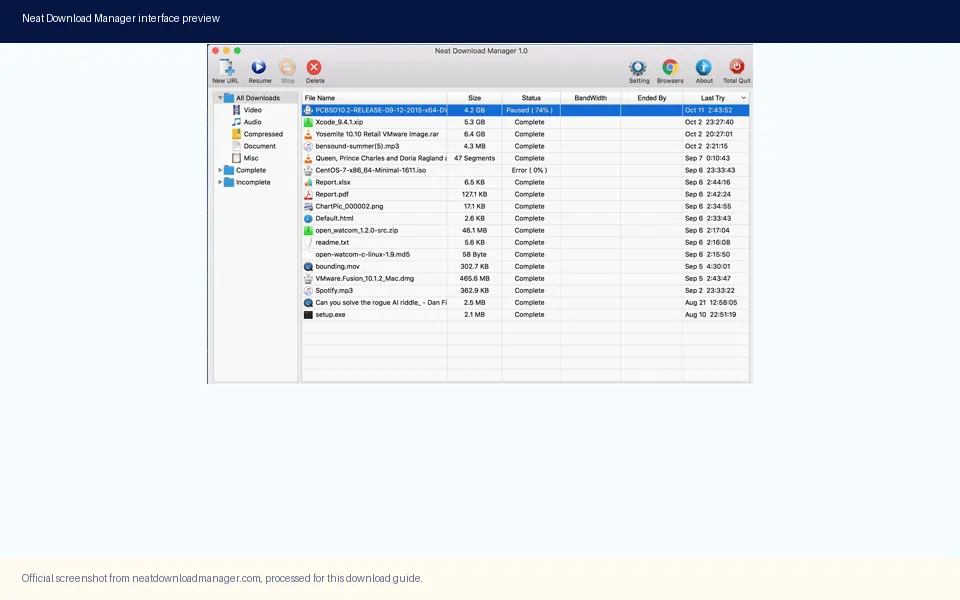
Official NDM interface media used to explain why the destination folder and task state should be checked separately.
UI labels can vary by NDM build. Use the visible destination or save-path field in the new task window instead of relying on an unverified menu name.
How to Change the Download Folder: Short Answer
The safest answer to how to change download folder for Neat Download Manager is to choose the destination when you create the next task. Open the new-download window, paste or capture the direct URL, find the folder or save-path control, and select a writable directory before clicking the start action. Then open the finished file from that directory and compare the path shown by your operating system with the path you selected.
Do not treat the app's working files as the same thing as the destination folder. A completed file may sit in a folder such as Downloads or on a second drive, while logs, resume data, and temporary segments can be stored elsewhere. Moving the visible file after completion is a file-management action; moving an active task's hidden pieces is a recovery risk.
The exact menu wording can differ between NDM builds and operating systems. This page therefore describes the decision points that remain stable: choose a destination before the transfer begins, confirm that the folder exists and is writable, test with a small direct file, and only then use the new location for larger downloads or browser-captured links.
What counts as a successful change?
A successful change means a new task writes its finished output to the selected folder, the file name and size are correct, and NDM can complete the transfer without leaving the task in an incomplete or error state. It does not require relocating old tasks or changing every operating-system download setting.
If the first test returns to the old folder, check whether the browser extension created the task before you changed its destination. Browser capture can preserve settings from the moment the link was handed to NDM, so canceling and creating a fresh task is often clearer than trying to repair a task that already started.
Before You Change the Folder
Use a folder you own and can write to. On Windows, an example is C:\Users\YourName\Downloads\NDM or D:\Downloads\NDM. On macOS, an example is /Users/YourName/Downloads/NDM or a folder on an attached volume. These are examples, not claims about an NDM default path. The important property is that the destination remains available while the transfer is running.
Create the folder first when possible, check its free space, and avoid a removable drive for a task that must finish unattended. A disconnected disk, a renamed volume, a cloud-only placeholder, or a folder protected by operating-system permissions can look like an NDM problem even when the source URL is fine.
If you are changing location because the system drive is full, move completed files separately from active transfers. Keep enough free space for the file plus temporary transfer data. Large segmented downloads may need additional working room before NDM can assemble the final output.
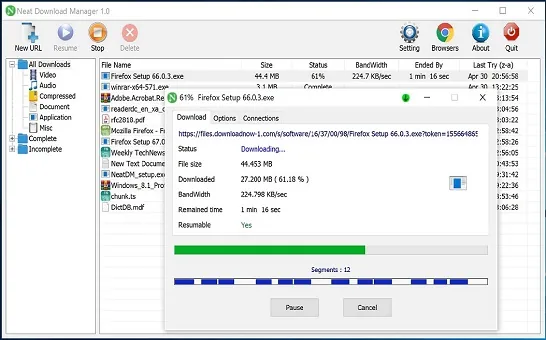
Official NDM transfer media. Check the task's file and status details before deciding whether a path problem is local or source-related.
Keep NDM open while testing the new destination.
Use a short test file that you are allowed to download.
Confirm the destination drive is mounted and has free space.
Avoid protected system folders unless the operating system explicitly grants access.
Record the old path before changing it so you can compare the result.
Windows: Choose a New Destination
On Windows, the reliable workflow is to change the destination at task creation time. The labels may be called folder, directory, save path, or destination depending on the build. The field matters more than the label: it should identify where the completed file will be written.
If the new-download window offers a browse button, use it to select a folder on the intended drive. If it accepts a typed path, paste the full path and then verify the folder name before starting. Do not use a path that exists only as a network shortcut unless you have already confirmed that Windows can write to it while NDM is running.
Open Neat Download Manager and start a new task from a direct URL or a permitted browser-captured link.
In the new-task window, locate the visible folder, destination, directory, or save-path field.
Choose or create the target folder, such as D:\Downloads\NDM, and confirm the path shown in the dialog.
Start a small test download and wait until NDM reports completion rather than moving the file mid-transfer.
Open the file in File Explorer, inspect Properties, and confirm that its location and size match the task.
Changing the drive is a separate test
A new drive letter is not only a different folder name. It can have a different file system, permission policy, sleep behavior, or available space. Test the drive with a small file first. If the task fails on D: but works on C:, compare the drive's permissions and free space before changing browser integration or reinstalling NDM.
When a browser extension captures a link, create a fresh capture after the destination is ready. A capture made before a drive is mounted may retain an old path or fail before the task dialog is shown.
macOS: Choose a Folder or External Volume
On macOS, choose a folder that is inside your user account or on a mounted volume that remains connected. A practical example is /Users/YourName/Downloads/NDM. For an external disk, use a folder under /Volumes/VolumeName only after Finder can create and remove a test file there.
macOS may ask for permission when an application accesses a protected folder or removable volume. Read the prompt and confirm that the installer and application came from the source you intended. If the folder is writable in Finder but NDM cannot save to it, test a simple folder inside your home directory to separate path permissions from source-link issues.
Do not assume that changing the macOS browser's default download folder changes NDM's task destination. Browser defaults affect downloads handled by the browser; NDM tasks need their own destination confirmation when they are handed to the desktop application.
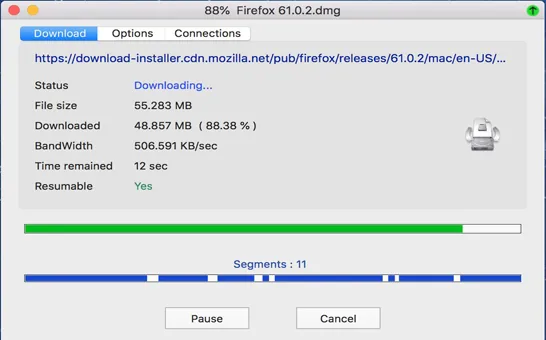
Official NDM task media. A segmented transfer should remain in place until completion; do not use Finder to move its temporary pieces while it is active.
Open NDM and create a new task from a direct file link.
Use the task's destination or save-path control to choose a folder in Downloads or a mounted volume.
Confirm the volume is mounted, awake, and writable before starting.
Download a small permitted file and wait for the completed state.
Use Finder's Get Info or file location view to verify the final path and file size.
Move Completed Files Without Breaking Active Tasks
Moving a completed file with File Explorer or Finder is usually safer than moving an active task, but it can still affect NDM's history or the file path shown by a related application. If you need the file in a new location, wait until NDM reports completion, close the file, move it, and keep the original name. For anything that must remain resumable, re-add the original URL in the new destination instead of guessing which internal files belong to it.
An active task can contain a final file, a partial file, segment pieces, logs, or resume metadata. The visible file name alone may not represent every piece NDM needs. This is especially important when the task is paused, when the source is an HLS playlist, or when the transfer was captured from a temporary browser URL.
If you already moved an active task and it now shows an error, do not delete every related file immediately. Record the task name, old path, new path, and error state first. Then test a small new download in the intended folder. That comparison tells you whether the destination is valid and the original task alone was damaged.
Completed file: move it only after the final state is visible.
Paused or incomplete task: leave its files in place until it resumes or is canceled.
HLS or segmented task: do not move individual segments or merge outputs manually during transfer.
Browser-captured task: create a new capture after changing the destination.
Recovery case: preserve evidence before deleting logs or temporary files.
Download Folder vs AppData and Temporary Files
Searches for an NDM AppData or Roaming folder often refer to logs, settings, resume data, or segment files rather than the finished download destination. Those locations have a different purpose. They should not be used as a replacement for a normal output folder, and they should not be deleted or moved while NDM is running.
If the question is about reclaiming disk space, first identify completed files in the destination folder. Then close NDM and back up any settings or resume data before cleaning anything. The exact internal directory can vary by operating system and build, so a generic path copied from a forum should not be treated as a universal NDM rule.
A useful diagnostic is to compare free space before and after a small test. If the destination folder grows but the system drive also fills quickly, the extra usage may be temporary transfer data. If the destination never grows, inspect the task error, the drive permission, and the source response instead of deleting AppData blindly.
Why temporary segments matter
Segmented transfers are made of smaller requests that NDM later tracks or combines. The task window may show segment counts and progress even when the final file is not ready. Treat those pieces as part of the active task, not as duplicate completed files that can be moved to another drive.
The official NDM interface can show a task's status, file size, bandwidth, and segment activity. Use those visible signals to decide whether a task is active or complete before changing its location.
Troubleshooting Matrix
The table below keeps path errors separate from browser and source errors. Start with a small direct file. If that works, the folder is probably usable and the next check should focus on the captured link or website. If it fails, stay local and inspect the drive, permissions, and available space first.
What you see
Most useful next check
The file still appears in Downloads
Create a fresh task and verify the destination field before starting; an older browser capture may have started already.
The new folder is empty and the task fails
Check that the drive is mounted, writable, and has enough free space; test a folder inside your user account.
A paused task will not resume after moving files
Return files to the original location if known, or cancel and re-add the permitted URL in the new folder.
The browser download works but NDM does not
Test the same direct file manually in NDM, then review the matching browser extension and handoff.
The system drive keeps filling
Look for active segments or temporary data, wait for completion, and close NDM before any cleanup.
An external drive disappears
Reconnect and remount it, then create a small test task; do not keep writing to a stale path.
Only one website fails
Check whether the URL is temporary, login-only, encrypted, or otherwise not a stable direct file.
Final Checklist for a New NDM Folder
A folder change is complete when the path is visible in the new task, the test file finishes, the operating system shows the expected location, and a second task can use the same destination without permission or space errors. Do not judge the change by whether an old task moved automatically; old tasks and new tasks can have different state and source URLs.
If your main problem is browser capture, read the extension setup and extension-not-working guides after confirming that a manual direct file can reach the new folder. If your main problem is a full disk, move completed files and keep active transfer data undisturbed. If the source itself is protected or temporary, changing the destination will not make it compatible.
Choose the new path before the next task starts.
Test with a small, permitted direct file.
Verify the final path and file size in the operating system.
Keep active segments and resume data in place.
Create a fresh browser capture after the folder is ready.
Treat AppData, logs, and temporary files as a separate cleanup question.
Folder FAQ
Neat Download Manager Download Folder FAQ
How do I change download folder for Neat Download Manager?
Create a new task, find the visible destination or save-path field in the new-download window, choose a writable folder, and start a small test file. Confirm the completed file in the operating system before using the path for larger downloads.
How do I change the download drive in Neat Download Manager?
Choose a folder on the mounted drive in the new task dialog, then test it with a small direct file. Check the drive's free space and write permission first; a new drive letter can have different access and sleep behavior.
Can I move an incomplete NDM download to another folder?
Avoid moving an incomplete task by hand. It may depend on partial files, segments, logs, and resume data. Finish or cancel the task, preserve the original files if recovery matters, and re-add the permitted URL in the new destination when necessary.
Does changing the browser download folder change NDM's folder?
Not necessarily. A browser's default folder applies to downloads handled by that browser, while NDM receives a captured link as a desktop task. Confirm the destination in NDM after the link is handed off.
Where does Neat Download Manager store AppData or segment files?
The working location can vary by operating system and build. AppData, Library, logs, resume data, and temporary segments should not be assumed to be the final download folder. Close NDM and back up important data before cleanup.
Why does NDM still save to the old folder?
The task may have been created before the change, or a browser capture may have preserved an earlier destination. Create a fresh task, verify its path before starting, and test a direct file to separate path settings from extension handoff.
Can I use an external drive as the NDM download folder?
Yes, if the drive stays mounted, has enough space, and the operating system lets NDM write to the selected folder. Test a small file first and avoid unplugging the drive while a task is active.
Will changing the folder fix a website that NDM cannot download?
No. A new destination can fix a path, permission, or space problem, but it cannot make a temporary, login-only, encrypted, or otherwise incompatible source URL become a stable direct file.
Checked sources
Official source and media notes
Official Neat Download Manager website - Checked August 10, 2026 for platform facts, version labels, installer links, and the official interface context.