Can Neat Download Manager Queue Downloads? Batch Workflow Explained
Neat Download Manager can hold several compatible download tasks in the desktop app, but a visible list of tasks is not the same as a guaranteed scheduler. Add one normal direct file first, then add the remaining files and confirm whether your build starts them together or keeps some waiting.
This guide explains a careful queue workflow for direct files, browser-captured links, segmented media, and large batches. It also shows when a queue question is really an extension, source-link, destination, or scheduler problem.
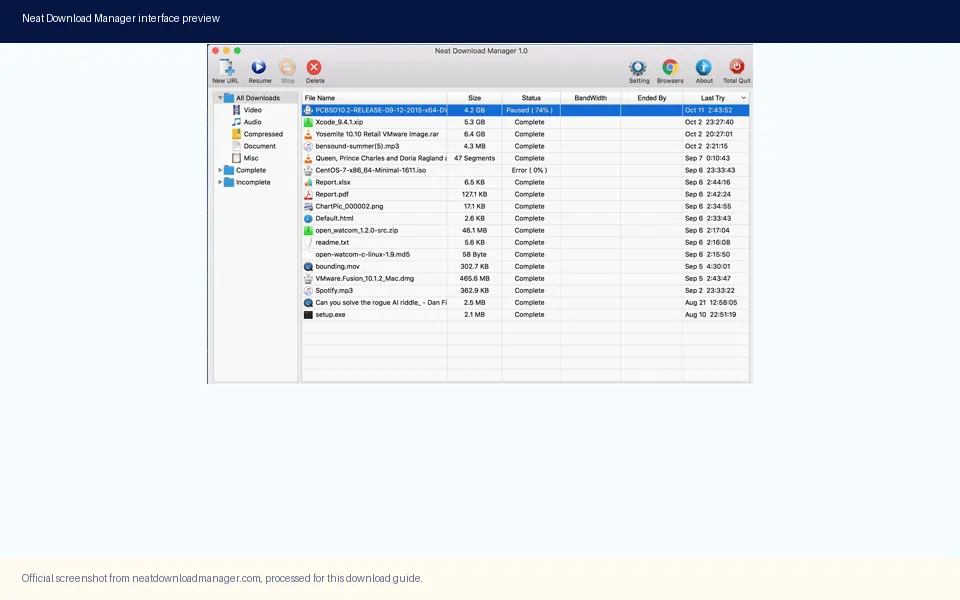
Official product screenshot. Use the task list to compare waiting, active, paused, and completed downloads before assuming a scheduler is available.
Official NDM source and installer facts checked on October 13, 2026. UI labels can vary by build.
Short Answer: Can Neat Download Manager Queue Downloads?
Yes, you can place multiple compatible files in Neat Download Manager as separate tasks and manage them from the desktop task list. That is the practical meaning of a Neat Download Manager queue: several tasks are visible together, while each task has its own URL, file name, destination, progress, and state. The app may transfer more than one task at a time, or it may leave some tasks waiting, depending on the build, connection rules, and source servers.
Do not promise a scheduler behavior that you have not observed in your installed build. The public product pages describe download management, pause and resume, segmentation, bandwidth controls, and browser handoff, but they do not provide a stable version-independent contract for a maximum queue size or an exact start order. Treat the task list as the source of truth: add two small files, watch what starts, and record the result before sending a large batch.
The safest answer to the question can Neat Download Manager queue downloads is therefore conditional. It can keep multiple download tasks together, but queueing is different from a calendar scheduler, a dependency chain, or a download manager that guarantees one-at-a-time execution. If you need those controls, use the comparison section below and choose a tool whose official documentation names the feature you require.
What Queueing Means in NDM
A queue is a group of tasks waiting for attention or transfer. In NDM, each row can represent a direct file, a browser-captured URL, or a segmented media task. A row can be waiting, connecting, downloading, paused, merging, completed, or failed. Those labels describe the state of one task; they do not automatically tell you how many other tasks the app will start at the same time.
A useful queue test separates three questions. First, can NDM accept more than one URL without losing the earlier task? Second, does the next task wait, start immediately, or compete for connections? Third, can you pause one task without stopping the others? Answering those questions with a small permitted file is more reliable than copying a scheduler setting from a different download manager or an older screenshot.
The task list also helps you spot a false queue problem. If a task never appears, the browser extension or source page may have failed before NDM received the link. If it appears but cannot start, the URL may be expired, protected, or unavailable. If it completes in the wrong folder, the destination was set at task creation. Queue diagnosis begins with the row and its exact state, not with a reinstall.
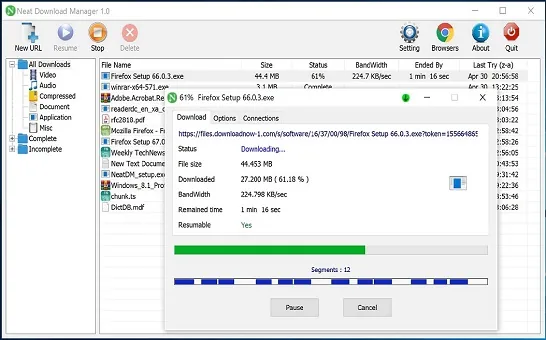
Official product screenshot. Check the active task's progress, destination, and transfer state before adding a large second batch.
A Safe Multi-Download Workflow
Use a small, repeatable test before treating NDM as a batch queue. Choose a file you are allowed to download from a normal HTTP or HTTPS URL. Keep the desktop app open, confirm the destination folder, and add the first task manually. Wait until the row shows a clear connecting or downloading state, then add the second task. This exposes the app's real behavior without mixing in browser capture or protected media.
Once two tasks are visible, compare their states and transfer rates. If both start, note whether the server and your connection can handle the combined traffic. If the second stays waiting, that may be the queue behavior you wanted. If the second fails before it starts, test its URL in a browser and compare the response with the first file. A queue cannot repair a broken or temporary source link.
After the two-file test, add a small group rather than a very large list. Confirm file names, destination paths, available disk space, and the number of active connections. A segmented download can consume more connections than its single row suggests, so a batch of several large files may compete with itself even when every row is healthy.
Open Neat Download Manager and confirm that the desktop app is running.
Create one task from a permitted direct file URL and choose its destination before starting.
Wait for a clear active state, then add a second direct file as a separate task.
Compare waiting, active, paused, merge, completed, and failed states in the task list.
Add the rest of the batch only after the two-file test behaves as expected.
Record the destination and final file size for each completed task.
Add Multiple Files Without Losing the Queue
Give each task a distinct file name and destination when the new-download dialog allows it. Reusing a name in the same folder can make a healthy queue look like a duplicate or overwrite problem. If a browser extension creates the task automatically, open the task details before starting and confirm that the URL, file name, and save path are the ones you intended.
A queue is easier to audit when the source and output are predictable. Use a folder with enough free space, avoid a removable drive for an unattended batch, and keep a short note of which link created each task. This is especially useful when several links come from the same page and the server returns temporary query parameters or different file names.
If you need one-at-a-time behavior, test it instead of assuming it. Pause all but one task and observe whether the active task uses the expected bandwidth. Then resume a second task and watch whether NDM shares connections or changes the first task's rate. These observations are more actionable than an unverified claim that NDM always downloads sequentially.
Prefer direct files for the first queue test.
Verify every task's URL, file name, destination, and permission.
Leave extra disk space for segments and merge output.
Use a stable folder and keep removable drives connected.
Write down the behavior of your installed build before scaling up.
How to Read Waiting, Active, and Completed States
A waiting row means NDM has a task record but is not currently transferring that file. The reason can be a connection limit, a manual pause, a source that has not responded, or a build that starts tasks in a different order. An active row is receiving data, but it may still need a merge stage before the final file is usable. A completed row should be checked in the destination folder rather than judged only by a progress percentage.
Use the table as a diagnostic shortcut. It does not replace the exact error shown by NDM, but it prevents you from treating every waiting task as a broken queue. When only one source fails, test that source separately. When every task fails, check the desktop app, network, destination permissions, and a known direct file before changing queue settings.
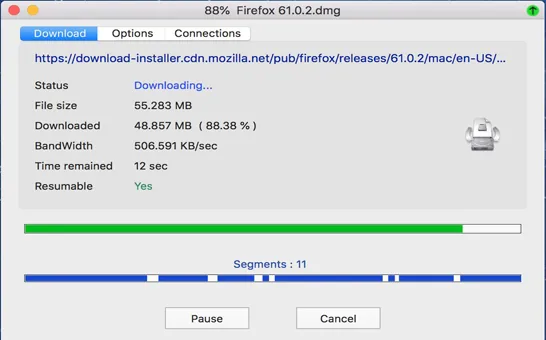
Official product screenshot. Segmented transfers can use several connections inside one row, so a queue of large files may consume more bandwidth than the row count suggests.
What you see
Likely meaning
Next check
Several rows are visible but one is waiting
The task is held by a pause, connection rule, source response, or build behavior.
Open task details and test a small direct URL separately.
Every row starts at once
The build or connection settings allow concurrent transfers.
Compare combined bandwidth and leave enough disk space.
A row never appears
The browser handoff or source page did not give NDM a usable URL.
Add the same direct URL manually, then check the extension guide.
A row says complete but the file is missing
The destination, file name, or write permission may differ from your expectation.
Open the task path and verify the final file size.
A video row downloads then merges
The source used segments that must be assembled after transfer.
Wait for the merge stage and read the HLS merge guide if it fails.
Browser-Captured Links Need a Separate Check
A Chrome, Firefox, or Edge extension can hand a compatible browser link to NDM, but the extension is not the queue itself. Install and open the desktop app first, then test one direct browser download. If a captured link never creates a task, troubleshoot the app and extension connection before adding more links. A queue cannot contain a task that the browser never delivered.
Many media pages create short-lived URLs, login-bound responses, or encrypted streams. One link may work when clicked in the browser and fail when added later to NDM. Capture the link close to the time you intend to start it, and treat a failed handoff as a source or permission problem until a manual direct-file test proves otherwise.
For site-specific exclusions, use the existing exclusion guide rather than disabling the extension everywhere. Keeping the capture scope narrow makes it easier to tell whether the queue is healthy and prevents unrelated browser downloads from filling the task list.
HLS, Segments, and Large Batches
A segmented or HLS task can look like one queued download while NDM requests many smaller pieces. After those pieces arrive, the app may merge them into a playable file. That merge stage is part of the task lifecycle, not evidence that a second hidden queue is running. Do not move segment files by hand while the task is active, and do not delete them just because the visible output file is not ready yet.
Large batches magnify source and storage limits. Several tasks can compete for the same server, your connection, and the destination drive. If speeds collapse, pause all but one task and compare the single-file result. If the single file is healthy, the problem is likely contention or a connection limit rather than a broken NDM queue. If it also fails, use the error and direct-file checks on the troubleshooting guide.
Queueing Versus Scheduler-Heavy Alternatives
A task list is enough when you only need to collect a few direct files, pause one transfer, or watch several compatible downloads from one desktop app. It is not enough evidence for a calendar scheduler, dependency-based order, account-aware link grabbing, or torrent automation. Those are separate product requirements and should be verified in the official documentation for the alternative you are considering.
If your main requirement is a deeper queue, compare alternatives by platform, source compatibility, browser handoff, scheduler controls, and update trail. Do not switch just because one protected site failed in NDM; first determine whether the source URL is stable and permitted. The alternatives guide can help you compare the workflow without treating any tool as a universal bypass.
Need
Best next step
Keep several normal files visible
Use NDM task rows and verify the behavior with a two-file test.
Run a batch without saturating the connection
Test pause/resume and connection limits, then add files gradually.
Start downloads at exact times
Check a scheduler-focused alternative with current official documentation.
Capture browser links
Keep the desktop app and matching extension working before adding tasks.
Download protected or encrypted media
Do not assume a queue or alternate app can make the source compatible.
Queue Troubleshooting Matrix
Use this order when a Neat Download Manager queue appears stuck. Start with the row itself, then test a known direct file, then inspect the local app and destination. This order keeps a server refusal, an extension handoff failure, and a genuine task-control issue separate.
If the same direct file works in a browser but not in NDM, record the URL response and exact error instead of adding more tasks. If a small manual file works but browser captures do not, move to the extension troubleshooting page. If files complete but land in the wrong place, review the destination before the task starts and keep active segments in place.
Symptom
Most useful next check
Second task never appears
Add its direct URL manually and confirm whether the browser handoff created a task.
Second task waits forever
Check pause state, connection limits, source availability, and a small test file.
All tasks slow down
Pause all but one and compare bandwidth, server response, and available disk space.
Only one website fails
Treat the link as temporary, login-only, encrypted, or otherwise incompatible until tested.
A completed task is missing
Verify the task destination, file name, write permission, and final file size.
HLS task stays in merge
Leave segments in place, wait for completion, and review the merge-specific guide.
Practical Queue Checklist
The answer to can Neat Download Manager queue downloads is useful only when you can observe the result in your own build. A good test ends with several task rows, clear destinations, and at least one completed file that opens from the expected folder. It also records what happened when a second task started, waited, paused, or failed.
Keep the scope honest. NDM can organize compatible desktop downloads, but it does not promise that every website, stream, account, or scheduler workflow will behave like a normal direct file. When the requirement is deeper than a task list, compare alternatives by documented features and verify the source before moving a large batch.
Test one direct file before adding a batch.
Add a second file and observe whether it waits or runs concurrently.
Check each task's destination, file name, and state.
Pause one row to see how the rest of the list behaves.
Keep segments and temporary data in place until completion.
Use the extension and error guides for handoff or source failures.
Choose an alternative only when you need a documented scheduler or automation feature.
Queue FAQ
Neat Download Manager Queue FAQ
Can Neat Download Manager queue multiple downloads?
It can hold multiple compatible download tasks in the desktop task list. Whether they run together or wait depends on the build, connection rules, task state, and source server, so test two small direct files before adding a large batch.
Does NDM download queued files one at a time?
Do not assume a universal one-at-a-time rule. Add two direct files, watch their states, and test pause and resume. If you need guaranteed sequential scheduling, verify that requirement in a scheduler-focused alternative's current documentation.
Why is my second NDM download waiting?
The task may be paused, limited by connection settings, waiting for the source, or affected by the behavior of your installed build. Test a small direct URL and inspect the exact task state before changing advanced settings.
Can the Chrome or Firefox extension add downloads to the queue?
The extension can hand compatible browser links to the open desktop app, where they become NDM tasks. If no row appears, check the desktop app, extension permissions, and source-link compatibility before troubleshooting the queue.
Does queueing work for YouTube or HLS video?
A video task may contain segmented or temporary requests and may need a merge stage. Protected, encrypted, login-only, or adaptive streams may not expose a compatible direct link, so queueing cannot guarantee that the media will download.
Will a queue make downloads faster?
No. Multiple tasks can divide the same connection, server capacity, and disk space. Compare one direct file with two tasks and adjust connection or bandwidth limits only after the basic workflow works.
How do I keep queued downloads in a different folder?
Choose the destination in each new task when the dialog allows it, then verify a small completed file in that folder. Do not move active segments by hand, and do not assume a browser's default folder changes NDM's task destination.
Is a queue the same as an NDM scheduler?
No. A queue is a set of task rows and their transfer states. A scheduler may add time windows, dependencies, rate plans, or one-at-a-time rules. Treat those as separate requirements and verify them in current official documentation.
Checked sources
Official source and media notes
Official Neat Download Manager website - Checked October 13, 2026 for platform facts, version labels, installer links, and the official product context.
Official Windows installer source - Checked October 13, 2026: HTTP 200, application/octet-stream, Content-Length 917,340 bytes; no newer verified Windows file was found.
Official Mac installer source - Checked October 13, 2026: HTTP 200, application/octet-stream, Content-Length 1,468,544 bytes; no newer verified Mac file was found.
Related guides
Continue with the Right NDM Check
How to Use NDM
Start with a direct file, then test browser capture, pause, resume, and queue behavior.