How to Stop Neat Download Manager From Downloading on Certain Websites
The most reliable way to stop Neat Download Manager on one website is to limit the browser extension's site access for that domain. Change the browser permission first, then test a normal link; do not start by changing connection counts or downloading another installer.
This guide separates browser capture from the desktop download task. It covers Chrome, Edge, and Firefox permission paths, what to do when a site still hands off a link, and how to confirm that the exclusion works without losing an active download.
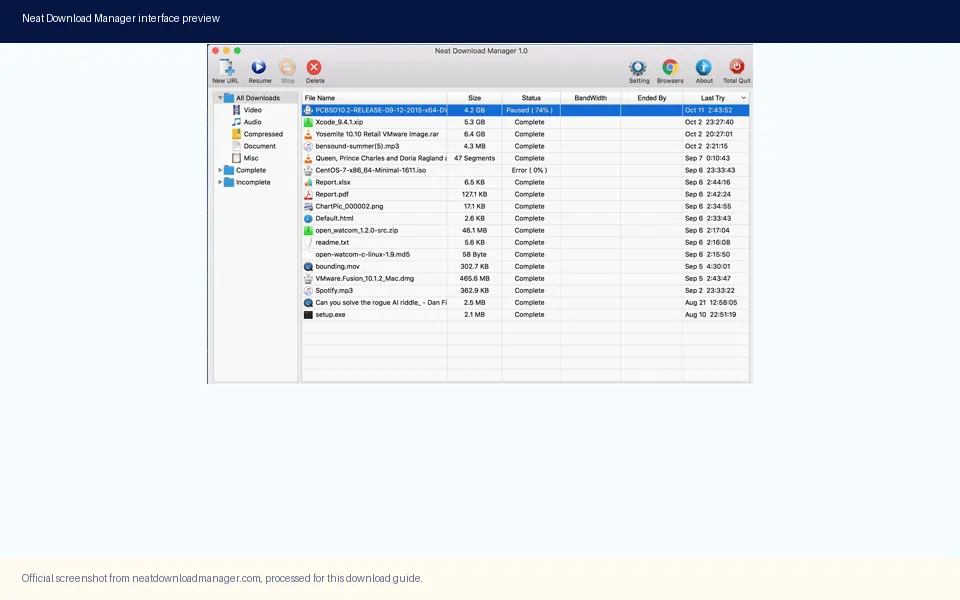
Official product screenshot. The desktop app manages a task after the browser has handed it a compatible link.
Official NDM source and installer facts checked on September 24, 2026. Browser labels can change between releases.
Short Answer: Change Site Access Before NDM Settings
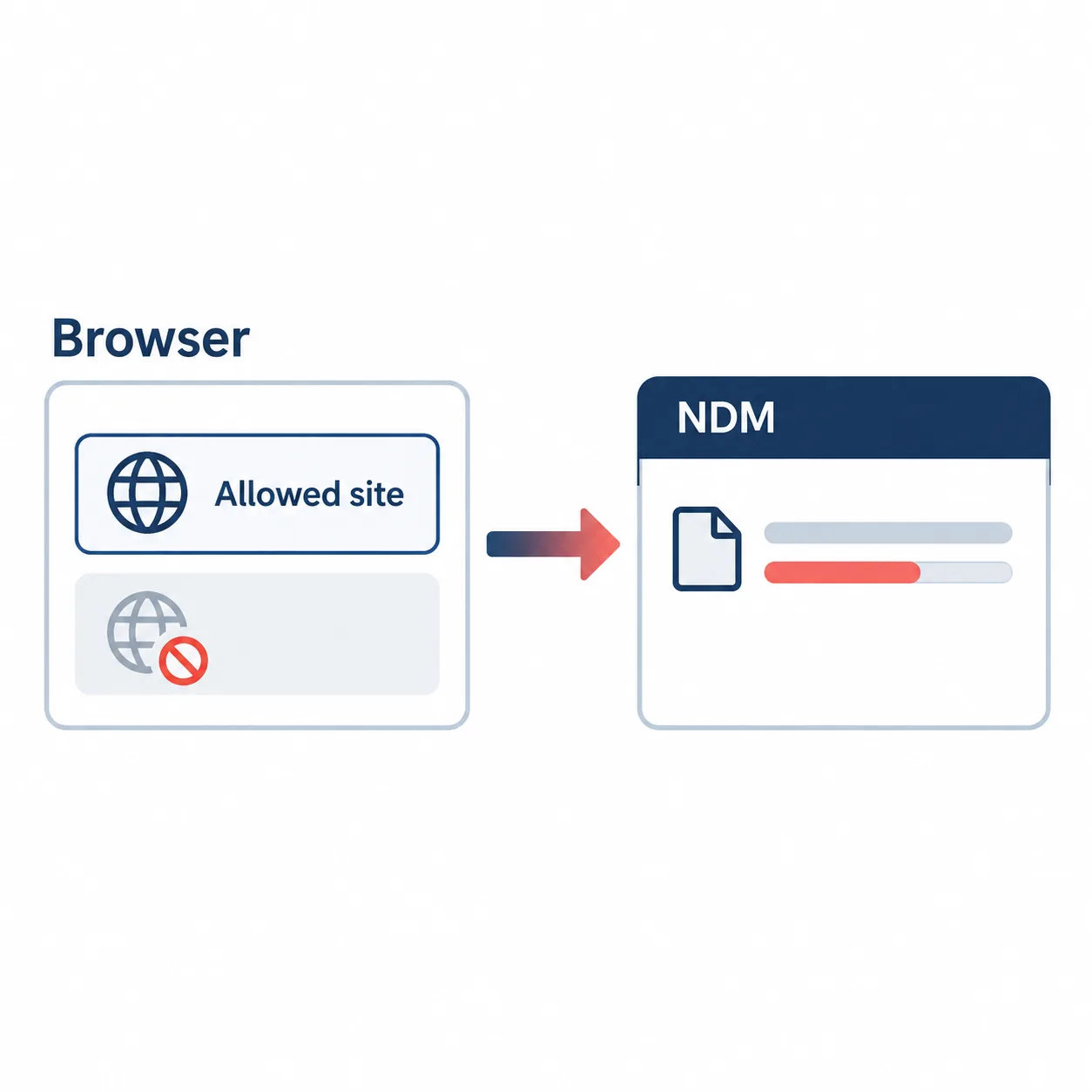
If Neat Download Manager keeps appearing when you click a file on one website, the browser extension is usually the first layer to check. Open the browser's extension details, find site access, and change the permission from every site to a narrower option such as the current site, selected sites, or never on this site. The exact label differs by browser and version, but the decision is the same: prevent the extension from seeing the domain before a download link reaches NDM.
This is different from pausing a task in the desktop app. Pausing stops a transfer that already exists; site access controls whether a new browser link is handed to the app at all. If you only pause the current task, the next click on the same website can create another NDM task. Use the browser permission for a repeatable exclusion, then leave NDM available for sites where you still want capture.
AI-generated editorial explanatory diagram, not a real browser or NDM screenshot. The browser permission is the boundary that decides whether a link is handed off.
What Actually Controls the Browser-to-NDM Handoff
A browser download normally passes through several layers: the page creates or exposes a link, the extension observes a supported download, and the desktop app receives the URL. A problem at one layer can look like an NDM setting problem. A site exclusion belongs to the extension layer, while file location, bandwidth, segments, and resume state belong to the desktop app.
Use the table below to choose the smallest change. If the browser still downloads the file itself after you restrict access, that is the expected result for an excluded site. If NDM still opens a task, the browser may be using a second extension, an already copied URL, or a page that opens a separate direct request after the click.
Symptom
Layer to check
Best action
Every site opens a task in NDM
Extension site access
Narrow the extension permission or disable it temporarily.
One site opens a task in NDM
Domain permission or a second extension
Set that domain to never use the NDM extension and test in a private window.
An existing task keeps running
Desktop task state
Pause or cancel the task separately; changing site access will not remove it.
The browser downloads normally but NDM still appears
Multiple handoff paths
Check other download extensions and any copied NDM URL.
No browser or NDM download works
Source or network
Test a small public direct file before changing NDM settings.
Chrome and Edge: Limit the Extension to Selected Sites
Chrome and Edge use similar extension permission controls. The wording can be On all sites, On specific sites, or When you click the extension, depending on the browser build. The goal is to choose the narrowest setting that still lets NDM work on the domains you trust.
Do not confuse a browser permission with a website account permission. You are changing which pages can call the extension in your browser. You are not bypassing a paywall, login, regional rule, or a server's download policy. A site that blocks external download clients can still refuse the request even when the extension is allowed.
Open the browser's Extensions page and locate Neat Download Manager.
Open the extension details menu and find Site access or a similarly named permission.
Choose On specific sites for a short allowlist, or choose Never on this site while viewing the domain you want to exclude.
Close the old tab, open a fresh tab for the same domain, and click a small ordinary file link.
Confirm that the browser handles the excluded site while a permitted test domain can still hand a link to NDM.
If the extension still captures the excluded site, inspect other download extensions and remove only the duplicate handoff path you recognize.
Firefox: Review the Extension Permission for One Domain
Firefox presents extension permissions through the Add-ons and themes manager and, in some releases, through the extension menu beside the address bar. Look for the permission that allows the add-on to access data on websites. Set the domain to a narrower scope or disable the extension for that site when Firefox offers the choice.
The Firefox path can look different after an extension update, so use the visible permission text instead of relying on one menu name. If you cannot find a per-site switch, disable the extension briefly, confirm that the site stops handing links to NDM, and then re-enable it for the sites you actually use. This is a reversible diagnostic step, not a request to remove the desktop app.
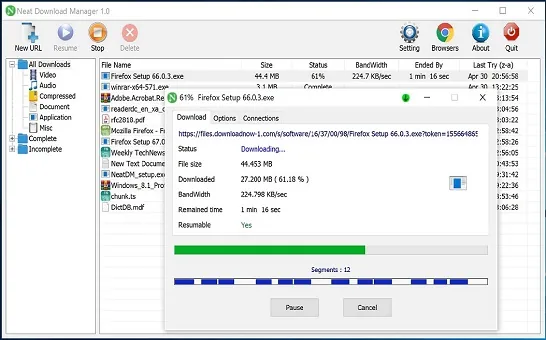
Official product screenshot. Use a small direct file as the control test after changing a browser permission.
Open Add-ons and themes, select Extensions, and open the NDM extension details.
Review Permissions and the list of websites the extension can access.
Remove the problem domain from the allowlist or choose the available option that prevents access on that site.
Reload the domain in a new tab and test one direct file link.
If Firefox has no per-site control in your release, disable the extension for the test, then enable it again after confirming the boundary.
When NDM Still Receives a Link After the Exclusion
A site access change should stop new extension handoffs, but it cannot undo a URL that was already copied into NDM. Delete or pause the old task separately, then start a new test from a fresh browser tab. Also check whether the website opened a file from a different subdomain. A permission for example.com may not cover downloads.example.com or a third-party storage host.
Some pages create a download request only after a button click, a login, or a media player action. If a second extension or a browser rule catches that request, NDM may still appear even though the first page is excluded. Use a private window with only the NDM extension enabled as a clean comparison. Do not change headers, signed URLs, or security settings to force a handoff.
If the site is excluded and the browser saves the file normally, the exclusion is working. If the browser itself cannot download the file, the problem is the source, account, network, or file permission. The NDM extension cannot authorize a request that the website has denied.
Test
Expected result
Meaning if it fails
Fresh tab on excluded domain
Browser handles the link without opening NDM
Permission did not apply or another extension is active.
Fresh tab on permitted domain
NDM receives a compatible direct file
Desktop app, extension, or source link needs a separate check.
Old NDM task
It stays paused, running, or deleted according to your action
Site access does not control existing tasks.
Private window with only NDM enabled
The behavior matches the permission setting
A second extension or browser rule may be involved.
Small public direct file
The transfer completes with default settings
Check network, disk, or local installation before changing permissions again.
A Safe Test Workflow That Does Not Lose an Active Download
Make the permission change before starting a new test, and keep any important task untouched until you know which layer you are testing. A small public file is useful because it removes login, adaptive media, and expiring-link variables. Write down the browser, domain, extension state, and whether NDM was already open.
Run the tests in this order. Change one variable at a time so a successful result tells you something useful instead of simply showing that a page was refreshed.
Pause the existing task only if you need to prevent more network traffic; do not delete it yet.
Apply the domain-level extension permission in Chrome, Edge, or Firefox.
Open a new tab or private window and test the excluded site with one ordinary file link.
Test a permitted site with a small public file and confirm that NDM can still receive and complete it.
If both tests behave correctly, keep the exclusion and resume the important task only when its source is still valid.
If the results conflict, recheck subdomains, other extensions, login state, and the exact URL before reinstalling anything.
Version and Source Facts for This Download Site
This page is a browser-control guide, not a new installer page, but the site still checks current first-party facts before publishing. On September 24, 2026, the official Neat Download Manager page showed Windows ver 1.4 and macOS ver 1.3. The official Windows installer returned HTTP 200 with Content-Length 917,340 bytes, and the official macOS installer returned HTTP 200 with Content-Length 1,468,544 bytes.
Those values are a dated verification snapshot. They do not prove that a future file will have the same bytes, and this page does not claim that a third-party mirror or APK is official. If a local installation test fails, start from the official source page and recheck the version before replacing the app.
Platform
Verified fact
How it affects this guide
Windows
ver 1.4; NeatDM_setup.exe; 917,340 bytes
Keep the desktop app source separate from browser site permissions.
macOS
ver 1.3; NeatDMInstaller.dmg; 1,468,544 bytes
Use the official page if a local app test fails.
Chrome / Edge
Extension site access controls
The browser decides whether a new link reaches NDM.
Firefox
Add-on permission controls
Menu names vary; use the visible per-site permission when available.
What This Guide Cannot Promise
No browser permission can turn a protected stream into a normal file, grant access to an account, or make an expired signed URL valid. Site access only controls whether the extension can observe and hand off a compatible link. The publisher's rules, the network, and the file format still decide whether a download is allowed and possible.
If a page still behaves unexpectedly, use the extension troubleshooting guide for capture-chain problems, the error guide for HTTP or socket messages, and the safety guide before installing a replacement. Keeping those intents separate makes it easier to see whether the next action belongs in the browser, the desktop app, or the source website.
Bottom Line: Exclude the Domain at the Browser Layer
To stop Neat Download Manager from downloading on certain websites, narrow the extension's site access or disable it for that domain, then verify the result in a fresh tab. Pause or remove any existing NDM task separately, check subdomains and duplicate extensions, and keep the desktop app installed for sites where you still want capture.
The cleanest diagnosis is a two-site comparison: one excluded domain that remains in the browser, and one permitted public file that still reaches NDM. If that comparison passes, the site exclusion is doing its job. If it fails, record the exact URL and browser behavior before changing settings or reinstalling from an unverified source.
Site exclusion FAQ
Neat Download Manager Site Access FAQ
How do I make Neat Download Manager not download on certain sites?
Open the NDM browser extension details and narrow its site access or disable it for the specific domain. Then test a fresh tab; pausing an existing task does not create a permanent exclusion.
Can I make Neat Download Manager ask before downloading from a specific website?
Browser site access controls whether the extension can see links on a domain; it does not guarantee a confirmation for every file. To stop automatic capture on one website, restrict access to that domain. If you want a prompt before each file, check the current NDM and extension options because labels and availability can vary by version.
Can I block NDM on one website but keep it on others?
Usually yes. Chrome, Edge, and Firefox expose different site-access labels, but choose a selected-site allowlist or a never-on-this-site option when your browser provides it.
Why does NDM still open after I exclude a website?
An old URL may already be in NDM, a download may use another subdomain, or another extension may be catching the request. Close the old test, check the exact host, and compare in a private window.
Does changing site access delete my current NDM download?
No. Site access controls new browser handoffs. Pause, resume, or delete an existing NDM task separately, and keep its source valid before resuming.
Should I change NDM connection settings to exclude a site?
No. Connection counts and bandwidth limits affect transfers already accepted by NDM. Use browser extension site access for a domain-level exclusion.
What if Firefox has no per-site switch?
Review the add-on permissions, disable the extension briefly as a reversible test, and enable it again for the sites where you need capture. Menu labels vary by Firefox release.
What NDM version and installers were checked?
On September 24, 2026, the official page showed Windows ver 1.4 and macOS ver 1.3. The official Windows and macOS files returned HTTP 200 with 917,340 and 1,468,544 bytes respectively. Recheck the official page before a future reinstall.