How to Uninstall Neat Download Manager on Windows and Mac
To uninstall Neat Download Manager safely, finish or cancel active transfers first, remove the desktop app through the operating system, and then remove the browser extension separately. Do not delete temporary segments while a task still needs them.
This guide covers Windows and macOS removal, Chrome and Firefox extension cleanup, leftover-data decisions, and the checks to use before reinstalling from the official source.
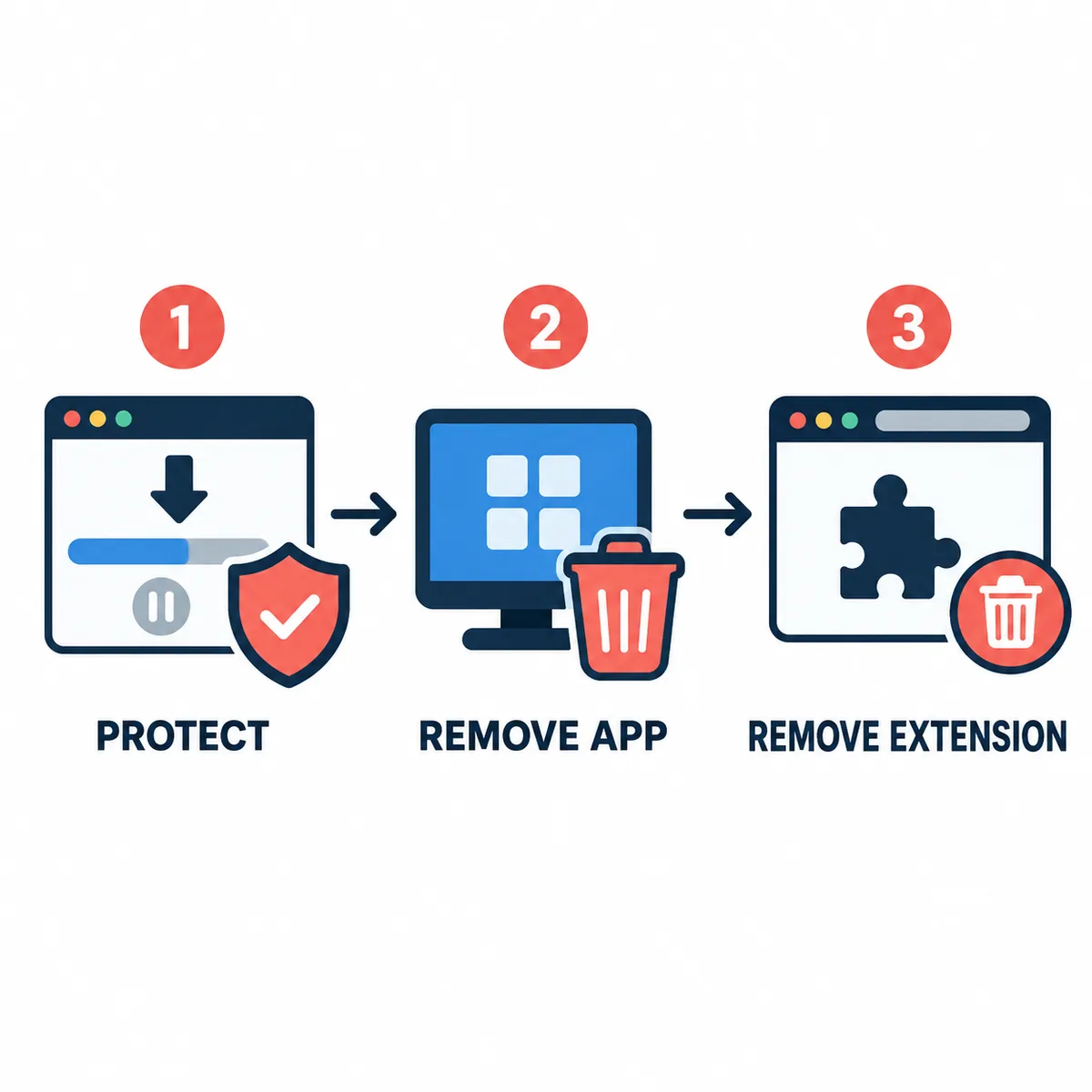
Editorial explanatory diagram, not an official software screenshot. Protect the task state first, then remove the app and extension in separate steps.
Checked September 21, 2026. Official Windows and macOS download sources were also checked before publishing this guide.
The Short Answer: Uninstall in This Order
The safest answer to how to uninstall Neat Download Manager is to separate the work into three layers: the desktop application, the browser extension, and optional leftover data. First let important downloads finish or record the URLs so they can be recreated. Next close NDM and remove the desktop app with Windows or macOS. Finally remove the extension from each browser where it was installed. Only after the app is gone should you decide whether settings, logs, or temporary data need cleanup.
Uninstalling the desktop program does not necessarily remove Chrome, Firefox, or Edge extensions. Conversely, removing an extension does not remove the desktop application. Keeping those layers separate makes it easier to tell whether a later problem comes from the browser handoff, an old task, or a fresh installation.
This is an informational removal guide, not a claim that every build stores files in one universal folder. Menu labels and data locations can vary by NDM version and operating system. Use the visible application name, the task status, and the source path you can verify on your own device.
The app, browser extension, and optional leftovers are separate cleanup decisions. Completing them in order reduces the chance of losing resumable task data.
Before You Uninstall: Protect Active Downloads
Look at the NDM task list before opening an uninstall dialog. A completed file can usually be handled as an ordinary file, but a paused, queued, merging, or partially downloaded task may depend on segments, resume information, or a temporary URL. If you still need the file, let it finish when practical. If that is not possible, copy the original URL and note the destination, file name, and task state before removing the app.
Do not use Windows File Explorer or Finder to drag pieces of an active task into a new folder. A visible partial file may not be the only data NDM needs. If your real goal is to change the destination, use the download-folder guide and create a fresh test task instead of uninstalling the app as a shortcut.
Back up only what you understand. A list of source URLs, completed files, and user-created settings is usually more useful than copying an unknown temporary directory. Never back up or share private download links that contain session tokens or account information.
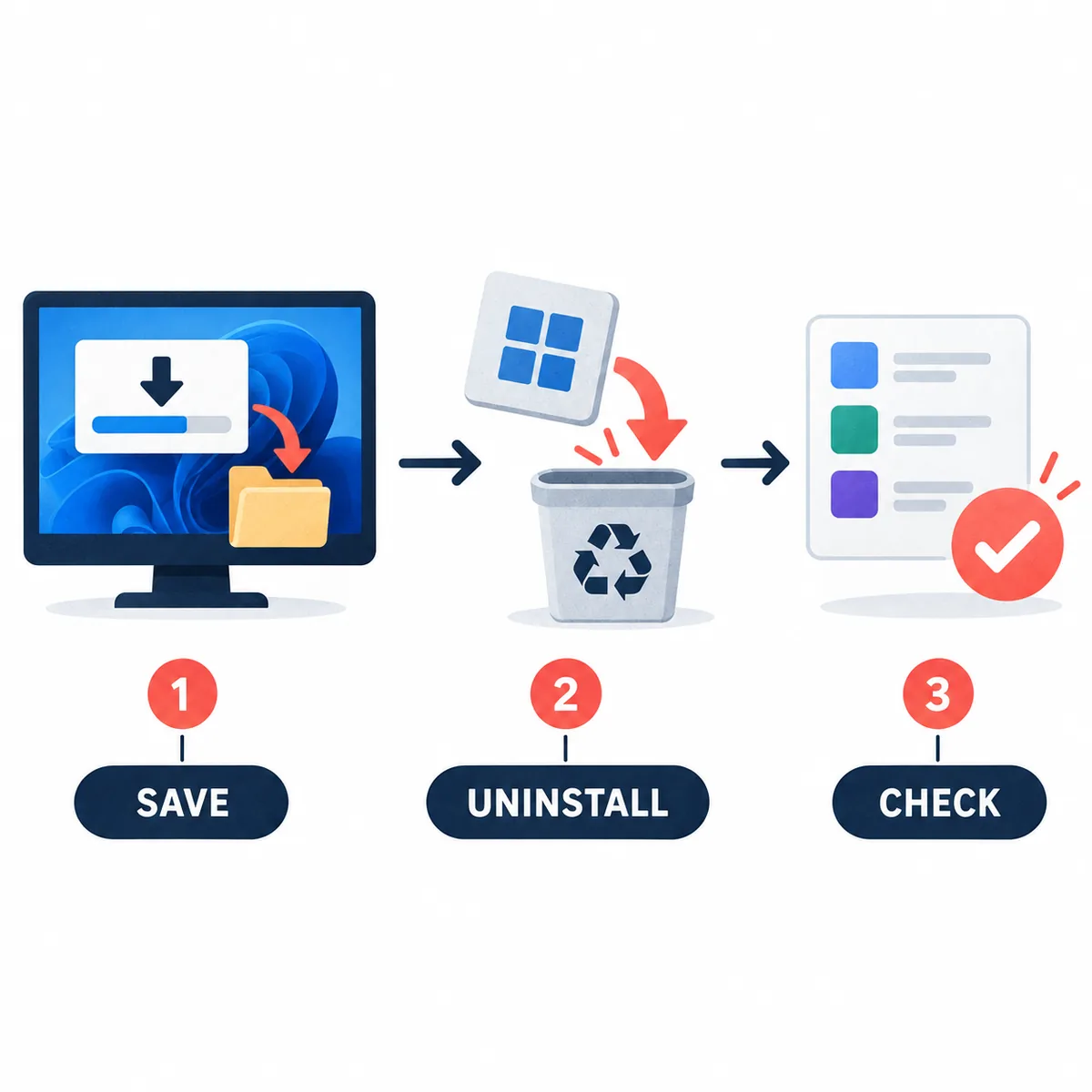
Preparation matters more than a fast uninstall when a transfer is paused or still merging. Save the information needed to recreate a permitted task.
Finish important tasks or save their permitted source URLs.
Wait until a task is complete before moving its final file.
Record the destination and any error message for a task that cannot finish.
Close browsers that are still handing new links to NDM.
Do not delete segments, logs, or resume data while NDM is running.
Windows: Remove the Desktop Application
On Windows, start with the normal installed-app removal path. The exact screen name depends on the Windows release, but Settings and Control Panel both expose an uninstall action for registered desktop programs. Search for Neat Download Manager by its visible product name, confirm that no transfer is still active, and use the operating system's removal command rather than deleting the installation folder by hand.
If the program is open, quit it first. A browser extension may still be connected to the process, so close the browser or disable the extension temporarily when the uninstaller reports that files are in use. Do not interpret an in-use warning as permission to delete random DLLs or task folders; capture the message and retry after the process has closed.
After removal, restart Windows only if the uninstaller requests it or a locked-process issue remains. Then check the Start menu and Installed apps list. The absence of a shortcut alone does not prove that the registered application has been removed.
Finish or cancel important NDM tasks and close the desktop app.
Open Windows Settings, choose Apps, and open the installed-app list; Control Panel is an alternative for older layouts.
Find Neat Download Manager, choose Uninstall, and follow the displayed confirmation steps.
Close any browser that still has the NDM extension active if Windows reports that a file is in use.
After completion, check the installed-app list and launch the browser extension page for separate cleanup.
What you see
Best next action
NDM is not listed
Check whether it was a portable or incomplete package; do not delete unrelated folders just because the name looks similar.
Windows says the app is open
Quit NDM and browsers, inspect the task state, then retry the normal uninstall command.
A task disappears after removal
Recreate it from the saved permitted URL; do not assume a temporary segment folder is recoverable.
The browser still captures links
Remove or disable the browser extension separately; desktop-app removal does not always remove it.
macOS: Quit NDM and Move the App to Trash
On macOS, quit Neat Download Manager before removing it. A task that appears finished may still be writing or merging, so confirm the final state in the app before closing it. Then open Applications or the location where you intentionally placed the app, select Neat Download Manager, and move the application to the Trash using the normal Finder action.
If macOS refuses to move the app, close NDM from the menu bar or Dock, close the browser extension's browser window, and try again. A restart can release a stuck process, but it should not be your first response to a task that still needs its temporary data. Keep the original source URL if you cancel a transfer.
Emptying the Trash is a separate decision. Wait until you have confirmed that you no longer need the app, its preferences, or information required to reproduce an unfinished task. Removing the app bundle does not automatically prove that every preference or cache has disappeared.
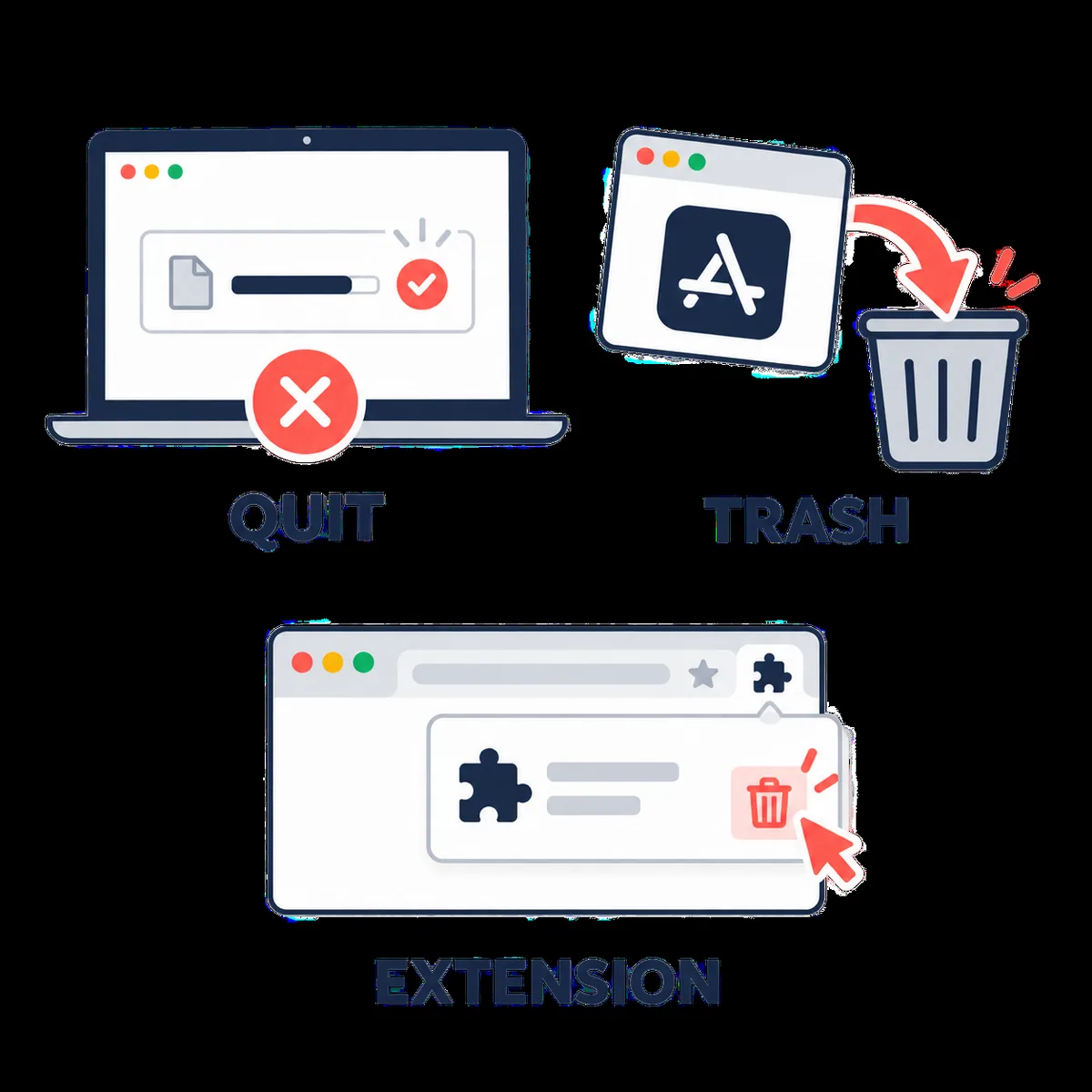
On Mac, removing the application and removing a browser add-on are separate actions. Check both places before declaring the uninstall complete.
Finish or cancel important transfers and wait for any merge stage to end.
Quit Neat Download Manager and close browsers that use its extension.
Open Applications, select Neat Download Manager, and move it to the Trash.
If macOS reports that the app is in use, quit the related process and retry before restarting the Mac.
Keep the Trash and optional support files until you have verified that no task or setting is needed.
Remove Chrome, Firefox, or Edge Extensions Separately
A browser extension is a separate installation layer. Open the browser's extensions or add-ons manager, find the Neat Download Manager companion, and choose Remove. Repeat the check in every browser where you installed it. If you only disable the extension, the desktop app may remain installed and the browser may keep showing a disabled add-on; remove it when your goal is a clean uninstall.
Before removing an extension, check whether it is still sending links to an NDM process. Stop new captures first. If the extension was installed from a browser store, use the store or the browser's own management screen rather than downloading a second uninstaller from an unrelated site.
If the extension returns after reinstalling the desktop app, review the installation choices and browser permissions. That behavior may be an intentional integration step, not proof that the old extension survived.
Browser
Removal check
Chrome
Open the extensions manager, locate the NDM companion, and select Remove; confirm no other NDM entry remains.
Firefox
Open Add-ons and themes, remove the NDM extension, and review permissions if you plan to reinstall later.
Edge
Open Extensions, remove the NDM entry, and check whether a separate Chromium browser profile also has it.
Multiple browsers
Repeat the check per profile; removing it from one browser does not remove it from another.
Should You Delete Leftover Folders and Settings?
A clean uninstall does not require deleting every folder that contains NDM in its name. Preferences, logs, caches, and resume data can have different roles, and their locations vary by build and operating system. If you are troubleshooting a broken setting, first keep a backup or rename a clearly identified folder instead of permanently deleting it.
Do not remove AppData, Library, temporary segments, or browser profile data while an NDM process is open. A folder that looks like a duplicate download may be part of a paused or merging task. If your goal is to free disk space, identify completed files and confirm that no active task needs the remaining data before cleaning.
For privacy-sensitive work, review private URLs and downloaded files separately. Uninstalling an app does not erase files you downloaded or account sessions held by a browser. Clear those items only when you understand which application owns them and when the source service permits the action.
Keep a copy of settings or source URLs if you may reinstall.
Remove only folders you can identify as NDM data and no longer need.
Never treat a generic folder name as proof that it belongs to NDM.
Review browser history, permissions, and downloaded files as separate privacy tasks.
If the problem is only a download path, use the folder guide instead of a full cleanup.
When Uninstalling Does Not Work
Most uninstall failures become easier to diagnose when you identify which layer is blocking the action. A locked process, a missing installer registration, a browser extension, and a damaged task folder need different responses. Avoid registry cleaners, random removal tools, and third-party installers until you have recorded the visible error and confirmed the official product source.
If Windows or macOS can remove the app but a browser still captures links, the remaining problem is likely the extension or browser profile. If the app is gone but disk space is still used, inspect completed downloads and clearly identified support data rather than assuming all remaining bytes are a failed uninstall.
If you plan to reinstall, test the operating system with a small permitted file first and keep the official source page available. A reinstall cannot repair an expired URL, a protected media stream, or a destination drive that the operating system cannot write to.
Problem
Do this next
Uninstaller is missing
Check the installed-app entry and original source; do not download a replacement uninstaller from an unknown mirror.
Files are locked
Quit NDM and browsers, wait for active transfers to stop, then retry the operating-system removal path.
Extension remains
Open each browser profile's extensions manager and remove the companion separately.
Old tasks or folders remain
Preserve URLs and completed files, then identify support data before deleting anything.
Reinstall still fails
Test the official installer source, permissions, free space, and a simple direct file independently.
Reinstall Only After Verifying the Official Source
If you are uninstalling because NDM stopped working, reinstalling can be reasonable after the removal is complete. Use the official Neat Download Manager site as the starting point. In the September 21, 2026 source check, the Windows file was NeatDM_setup.exe, version 1.4, 917,340 bytes, and the macOS file was NeatDMInstaller.dmg, version 1.3, 1,468,544 bytes. These are availability facts from the checked first-party files, not a permanent promise that no newer build will appear.
The official page did not expose a separate release note or date that could be independently verified in the same check. Recheck the source page before a future installation and compare platform, file name, version label, and download domain. Do not call a mirror, portable bundle, or APK official just because it uses the NDM name.
After reinstalling, test one permitted direct file before restoring browser capture. This separates an installation problem from a protected URL, a destination permission issue, or a browser handoff problem.
Open the official Neat Download Manager site and confirm the platform-specific download link.
Compare the file name, version label, platform requirement, and source domain before opening the installer.
Install the desktop app, then add the browser extension only from its verified browser-store context.
Test a small permitted direct file and confirm the destination before restoring a larger queue.
If the same error returns, use the error or extension troubleshooting guide instead of repeating the uninstall loop.
Bottom Line
To uninstall Neat Download Manager cleanly, protect active downloads, remove the Windows or macOS application with the operating system, remove browser extensions in each browser, and treat leftover data as an optional, evidence-based cleanup step. Do not delete active segments or private browser data just to make a folder look empty.
This page targets a distinct uninstall intent rather than repeating the Windows, Mac, download-folder, or extension setup guides. If the app is still useful but the problem is only a path or browser handoff, use the narrower troubleshooting guide that matches the symptom.
Uninstall FAQ
Neat Download Manager Uninstall FAQ
How do I uninstall Neat Download Manager on Windows?
Finish or cancel important tasks, close NDM, open Windows Settings or Control Panel, find Neat Download Manager in the installed-app list, and use the normal Uninstall action. Remove the browser extension separately.
How do I uninstall Neat Download Manager on Mac?
Finish or cancel important transfers, quit NDM, open Applications, move the app to the Trash, and keep the Trash or support files until you know no task or setting is needed. Remove the browser add-on separately.
Does uninstalling NDM remove the Chrome or Firefox extension?
Not necessarily. The desktop app and browser companion are separate layers. Open each browser's extensions or add-ons manager and remove the NDM entry from every profile where it was installed.
Should I delete NDM AppData or Library folders?
Only when you can identify the folder, no active task needs it, and you no longer need its settings or resume information. Back up useful source URLs first and avoid deleting generic folders by guesswork.
Can I uninstall NDM while a download is paused?
It is safer to finish or cancel the task and save its permitted source URL first. A paused task may depend on segments, logs, or resume data that will not be recoverable after removal.
Should I reinstall Neat Download Manager after uninstalling it?
Only if the source of the problem is likely local. Verify the official Windows or macOS source, test a small direct file, and use the error or extension guide if a protected URL or browser handoff is the real cause.